yfinance Guide: Yahoo Market Data API Access
If you're looking for an easy way to access free market data, yfinance is a Python library that lets you pull historical and real-time data from Yahoo Finance. It’s widely used by traders and researchers for stocks, ETFs, cryptocurrencies, futures, and more. You don’t need an account or API key to get started, making it simple and cost-effective.
Here’s what you’ll learn:
- How yfinance works: It retrieves data in Pandas DataFrames, supports intervals as short as 1 minute, and includes features like dividends and stock splits.
- Installing yfinance: A quick setup process using
pipor Anaconda. - Using yfinance for trading workflows: Retrieve data for backtesting, automate updates, and optimize performance on VPS platforms like TraderVPS.
- Tips for futures traders: Use index proxies and manage timezone adjustments for better analysis.
This guide walks you through everything you need to know to integrate yfinance into your research and trading processes.
yfinance Python Tutorial: Get Free Market Data
Installing and Setting Up yfinance on TraderVPS
Getting yfinance up and running on your TraderVPS setup is a straightforward process that integrates seamlessly with NinjaTrader workflows.
System Requirements for yfinance
To install yfinance, make sure your system has Python 3.6 or higher. The library depends on four key packages: pandas (>= 0.24), numpy (>= 1.15), requests (>= 2.21), and multitasking (>= 0.0.7). The good news? These dependencies are automatically installed when you add yfinance via pip.
"yfinance installs quickly with only 4 dependencies, which are typically available with Anaconda."
- Greg Bland, Author, AlgoTrading101
TraderVPS's Windows Server 2022 environment supports yfinance across all VPS plans, from the budget-friendly VPS Lite to Dedicated Servers.
Installing yfinance
To install the latest version of yfinance, open Command Prompt or PowerShell on your TraderVPS and run:
pip install yfinance --upgrade --no-cache-dir
The flags ensure you're installing the most up-to-date version without interference from cached files. Once the installation is complete, confirm it by running:
pip show yfinance
This will display details like the version, installation path, and dependencies. To ensure everything works, test the installation with the following Python snippet:
import yfinance as yf; print(yf.Ticker("AAPL").info)
If Apple's stock details appear, you're all set. Prefer using Anaconda? You can install yfinance with this command instead:
conda install -c ranaroussi yfinance
With yfinance installed, it's time to organize your environment for efficient data handling.
Organizing Your VPS Environment
For a smooth workflow, structure your directories on TraderVPS as follows:
- C:\Trading\scripts - Store Python scripts and Jupyter notebooks here.
- C:\Trading\data_cache - Use this for downloaded CSV files that NinjaTrader can import for backtesting.
- C:\Trading\logs - Keep logs of script executions and errors, such as rate-limiting issues.
This setup keeps your data and scripts neatly arranged, reduces redundant API calls by caching data locally, and speeds up your backtesting process. Since yfinance returns data in Pandas DataFrames, ensure your VPS has enough RAM to handle larger datasets. For instance, the VPS Pro plan with 16GB of RAM is sufficient for most research tasks, while the VPS Ultra plan with 64GB is better suited for intensive backtesting involving multiple symbols.
One important tip: yfinance scrapes data from Yahoo Finance's public site, so avoid overwhelming their servers with excessive requests. To prevent rate-limiting issues, implement local caching. This not only prevents disruptions but also speeds up your workflow significantly.
Retrieving Market Data with yfinance
Once you've installed yfinance on your TraderVPS, you can easily pull market data to support your analysis and backtesting tasks. Below, we’ll dive into the main methods yfinance provides for retrieving both historical and real-time data.
Core API Methods in yfinance
yfinance simplifies data retrieval with three key methods:
yf.Ticker(symbol): This creates a single ticker object, giving access to historical prices, dividends, and stock splits [1].yf.Tickers("list"): Use this when working with multiple symbols at once [1].yf.download(): This method fetches bulk historical data for one or more symbols, returning it in a single DataFrame [1][5].
Historical Data Retrieval
The download() function is highly customizable, allowing you to tailor the data to your needs. You can define start and end dates using the "YYYY-MM-DD" format or Python datetime objects [5]. Alternatively, the period parameter lets you specify relative timeframes like 1d, 5d, 1mo, 1y, or max [1]. For data granularity, use the interval parameter, which supports options like 1m, 5m, 1h, 1d, 1wk, or 1mo [5]. Keep in mind that intraday intervals (1m through 1h) are limited to the most recent 60 days of data [5].
To make your life easier, setting auto_adjust=True will automatically adjust Open, High, Low, and Close prices to account for stock splits and dividends [5].
Here’s an example of how to download NVIDIA's daily data from January 1, 2023, to March 1, 2025:
yf.download("NVDA", start="2023-01-01", end="2025-03-01", interval="1d", auto_adjust=True)
If you're working with index data, remember to use the caret prefix (e.g., ^GSPC for the S&P 500 or ^NDX for the NASDAQ-100) [5]. Understanding how to structure this data is essential for seamless integration into your trading workflows.
Understanding Data Structures and Formats
When you retrieve data, it’s returned as a DataFrame with the familiar Open, High, Low, Close, and Volume (OHLCV) columns [5]. If you're downloading data for multiple tickers, yfinance uses a MultiIndex format, where Level 1 represents the ticker and Level 2 specifies the price type [5]. For example, to isolate the closing price of a specific ticker, you can use df["TICKER"]["Close"] [5].
To simplify slicing, you can include group_by="ticker" when using the download() function. This organizes the DataFrame by symbol, allowing you to access all data for a security with df["TICKER"] [5].
The data adheres to US conventions, using formats like MM/DD/YYYY for dates and USD for prices. Volume figures are displayed as whole numbers with commas for thousands (e.g., 1,234,567). This makes the data ready for CSV exports and smooth integration into backtesting workflows. By following the directory structure mentioned earlier, you can export cached data from C:\Trading\data_cache directly into your trading systems, reducing redundant API calls and improving efficiency.
Using yfinance for Futures and Index Proxies
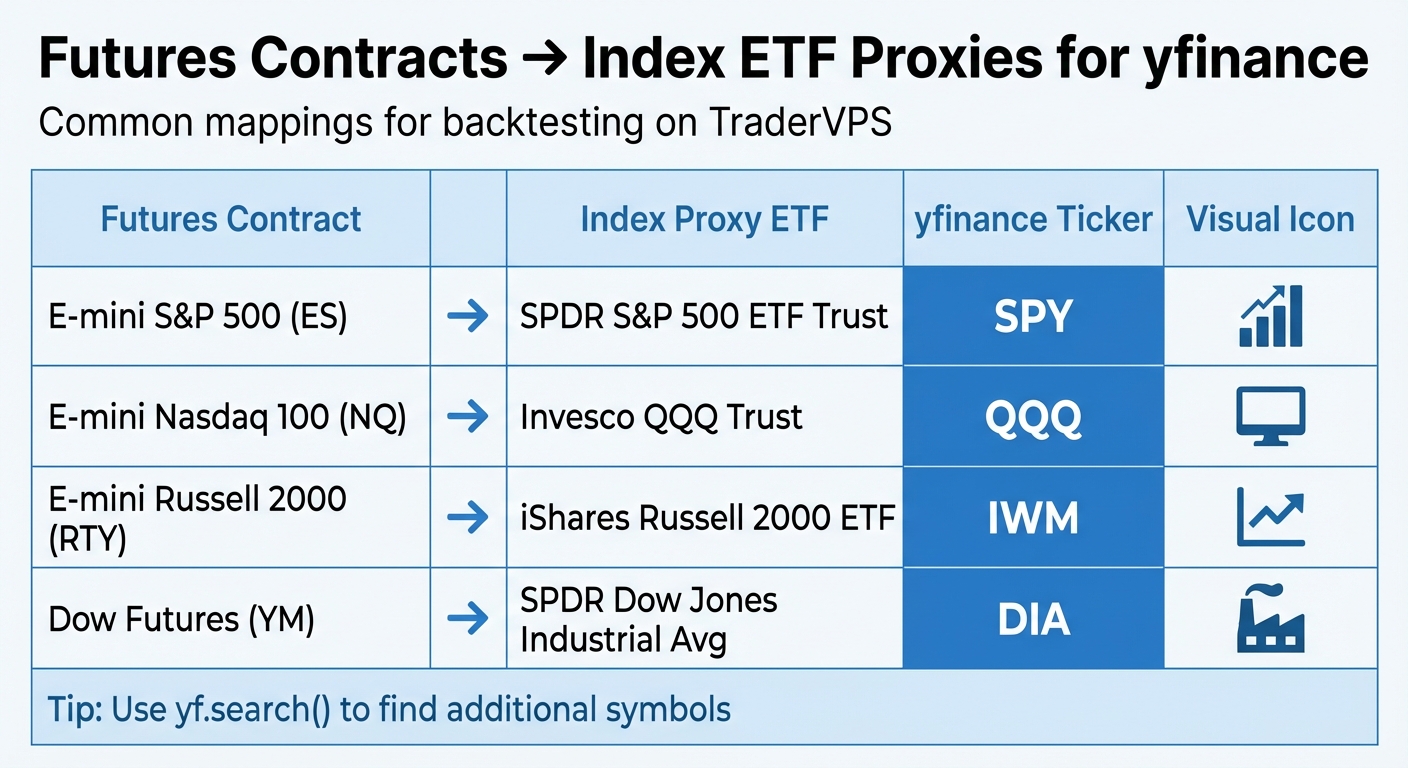
Futures Contracts to Index ETF Proxy Mapping for yfinance
This section dives into how you can use yfinance to retrieve and tailor data specifically for futures analysis and index proxies.
Symbol Coverage for US Futures Traders
Yahoo Finance provides futures data through the =F suffix (e.g., ES=F). However, many traders prefer using index ETFs as proxies for futures contracts during backtesting. Why? Index ETFs offer continuous and smooth price histories, which make the backtesting process simpler and more reliable, especially when working on platforms like TraderVPS.
Here are some of the most common mappings between futures contracts and their index ETF proxies:
| Futures Contract | Index Proxy ETF | yfinance Ticker |
|---|---|---|
| E-mini S&P 500 (ES) | SPDR S&P 500 ETF Trust | SPY |
| E-mini Nasdaq 100 (NQ) | Invesco QQQ Trust | QQQ |
| E-mini Russell 2000 (RTY) | iShares Russell 2000 ETF | IWM |
| Dow Futures (YM) | SPDR Dow Jones Industrial Avg | DIA |
For additional symbols, you can use the yf.search() function to find the correct tickers for your analysis [3].
Time Zones and Trading Sessions
When you pull data using yfinance, it includes timezone-aware timestamps with UTC offsets [6]. For US-based index proxies, like SPY or QQQ, the timestamps are typically in Eastern Time [6]. Since many TraderVPS setups operate on UTC, you can easily adjust the data to your preferred time zone using df.index.tz_convert().
To focus on Regular Trading Hours (RTH) and eliminate noise from pre-market and post-market sessions, you can use pandas' .between_time() method. This ensures that your backtesting reflects the primary trading hours accurately. Once you've downloaded your data, verify its integrity with .tail() to inspect recent entries [6].
Filtering and Refining Data
Accurate futures analysis starts with clean and well-formatted data. Always inspect your DataFrames for missing values, especially when switching between tickers with different naming conventions [4]. Keep in mind that yfinance limits 1-minute data to the last 30 days, with a maximum of 7 days per request [4].
To include extended trading hours, set prepost=True when using the history() method. This ensures your data covers both pre-market and post-market activity, giving you a more comprehensive view of price movements [4].
With these tools and techniques, you’ll have a solid foundation for refining your data and building effective trading strategies.
Integrating yfinance into VPS-Based Trading Workflows
Set up a complete research pipeline on your VPS to seamlessly pull market data, process it, and prepare it for backtesting or signal generation in NinjaTrader.
Building a Research Pipeline with yfinance
The first step in your workflow is data retrieval. Using yf.download, you can fetch historical data for index proxies or futures symbols. The data is returned as Pandas DataFrames [2], making it easy to manipulate. To streamline access, download key proxy data and save it locally.
For faster repeated access, store your cached data on TraderVPS NVMe storage. You can configure yfinance to use the NVMe drive for its cache by specifying the location with yf.set_tz_cache_location("path/to/nvme") [7]. Once cached, you can process the data - such as calculating moving averages or isolating regular trading hours - before exporting it to NinjaTrader's Historical Data Manager for further use.
After establishing this pipeline, you can focus on improving efficiency, especially when handling large data requests.
Optimizing Performance on TraderVPS
To speed up bulk downloads, enable multi-threading in yf.download by setting threads=True [2]. This allows the library to fetch data for multiple tickers simultaneously, significantly reducing download times.
However, be mindful of rate limits. Since yfinance relies on a combination of API calls and web scraping, excessive requests in a short period can result in temporary IP blacklisting [2]. To avoid this, batch your downloads and introduce pauses between large data pulls. For instance, if you're retrieving data for 20 symbols, split them into smaller groups of five and add a 10-second delay between each batch.
Once performance is optimized, automate your pipeline to ensure your data stays current.
Scheduling Recurring Data Updates
Automate your updates by using Windows Task Scheduler to run your Python scripts daily at 5:00 PM ET. This keeps your local data cache updated without manual input.
To keep logs clean and conserve resources, set progress=False in your yf.download calls [5]. If you prefer, configure the task to run "At System Startup", ensuring your data refreshes every time your VPS reboots. With this setup, your pipeline operates in the background, providing up-to-date data whenever you need it.
Conclusion: Using yfinance for Market Data on TraderVPS
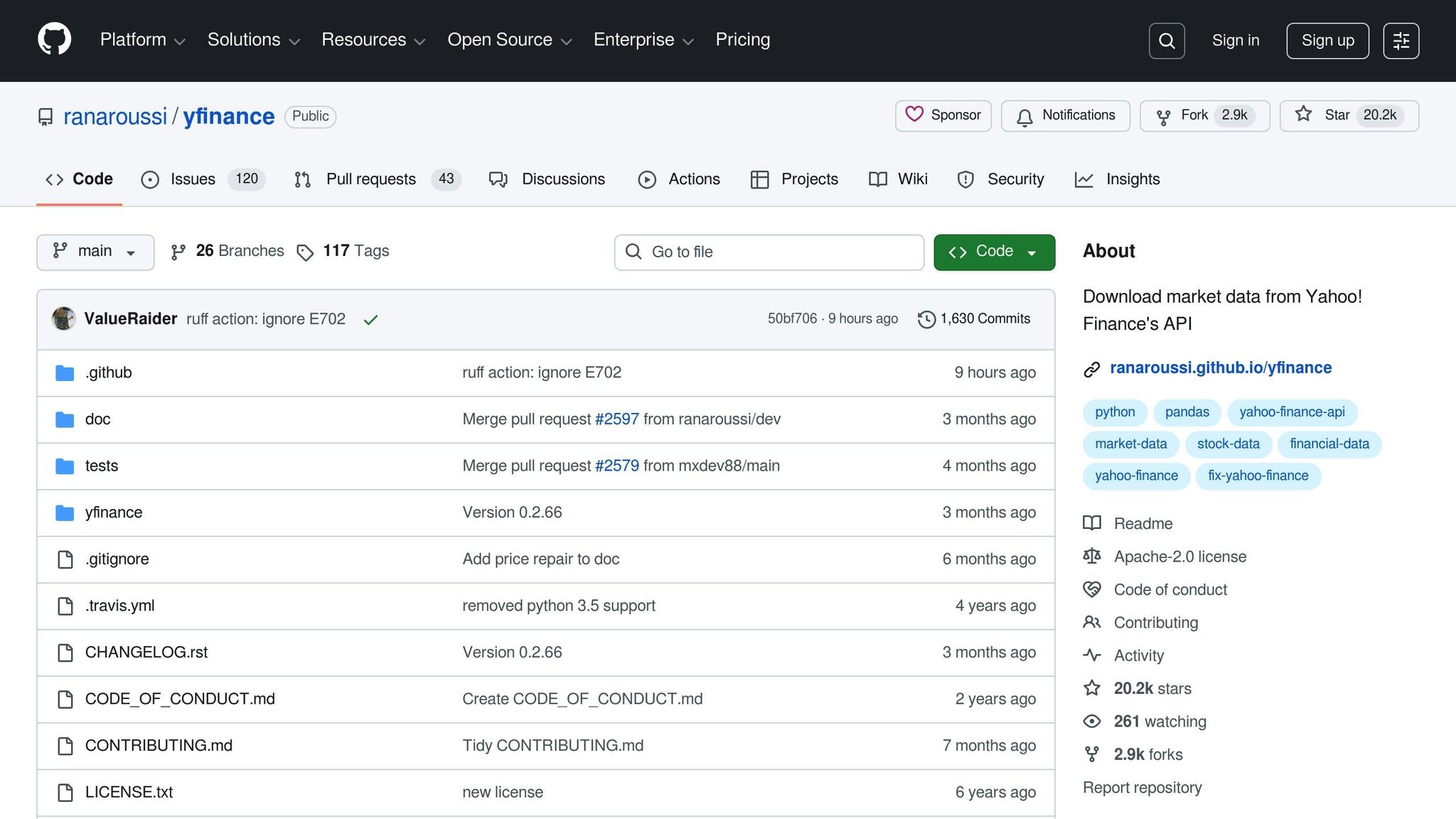
The yfinance library offers a straightforward and cost-effective way for futures traders to access market data. It’s widely used in the developer community, with thousands of projects on GitHub relying on it. For anyone building research pipelines or backtesting strategies, yfinance simplifies the process without the need for expensive data subscriptions. Its flexibility with intervals - from 1-minute to monthly - makes it a natural fit for Python-based trading systems, especially when paired with TraderVPS.
TraderVPS complements yfinance by providing a stable and high-performance environment for automated workflows. With 24/7 uptime, you won’t have to worry about interruptions caused by local hardware failures. NVMe storage speeds up data caching and retrieval, while the platform’s AMD EPYC processors handle multi-threaded downloads via yf.download with ease. This means you can efficiently pull historical data for multiple symbols at the same time, saving both time and effort.
"yfinance is a beginner-friendly option. You'll be able to dive right in and test out ideas without wasting time puzzling over complex documentation whilst still having access to a good range of data!" - Greg Bland, AlgoTrading101 [2]
It’s important to note that yfinance is an unofficial tool and is best suited for research and strategy development. When used on TraderVPS, it provides the data granularity and simplicity futures traders need to refine their strategies before putting real money on the line.
FAQs
How can I avoid rate-limiting when using yfinance?
To avoid rate-limiting issues when using yfinance, it's important to take advantage of its features and reduce unnecessary requests. One effective method is enabling the persistent cache, which stores reusable data like cookies, time-zone details, and previously downloaded price series. This helps cut down on the number of requests sent to Yahoo Finance.
When retrieving fresh data, group multiple symbols together by using yf.download() instead of making separate requests for each ticker. Including a brief pause - about 1–2 seconds - between batch downloads can also help you stay within Yahoo’s usage limits. Additionally, narrow the historical data range to only what’s essential and steer clear of rapid, repetitive queries.
These strategies can help keep your workflows running smoothly, prevent interruptions, and ensure consistent access to market data for trading or backtesting on TraderVPS.
What are the advantages of using index ETFs instead of futures contracts?
Using index ETFs instead of futures contracts has its perks, especially for those who value simplicity and ease of access. Unlike futures, ETFs are traded on stock exchanges just like regular stocks. This means you don’t need a specialized account or have to meet steep margin requirements to get started.
Another advantage is that index ETFs sidestep some of the complications associated with futures. There’s no need to worry about rolling over contracts or managing expiration dates. Plus, they offer exposure to a variety of assets, making them a straightforward option for diversifying your portfolio or executing trading strategies.
That said, keep an eye on factors like liquidity, tracking errors, and management fees, as these can impact the effectiveness of ETFs as a stand-in for futures contracts.
How can I schedule automatic updates for yfinance data on TraderVPS?
At the moment, there aren't any built-in instructions for setting up automatic updates for yfinance data directly on TraderVPS. While the yfinance library is great for pulling market data, automating regular updates (like daily or hourly downloads) usually involves using a task scheduler - such as cron jobs on Linux or the Task Scheduler on Windows.
To get started, you’d need to create a script using yfinance and then configure your VPS to execute it at specific intervals. For step-by-step instructions, check out resources tailored to your operating system or server environment. If you're feeling stuck, diving into your VPS’s task automation documentation can help you figure out the process.