TWS Demo: IBKR Paper Trading Tutorial
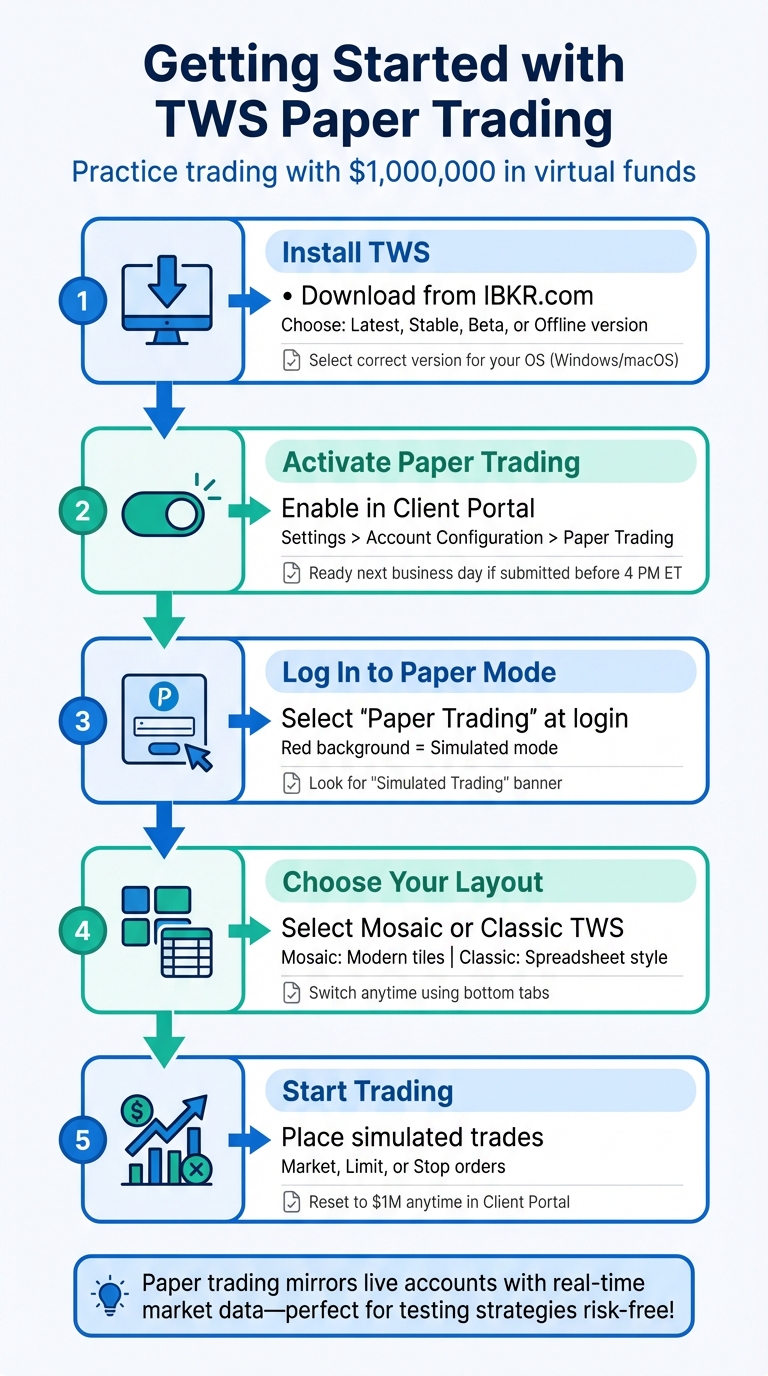
Paper trading on Interactive Brokers' Trader Workstation (TWS) lets you practice trading with $1,000,000 in virtual funds, using real-time market data in a simulated environment. It’s perfect for learning how to place orders, manage positions, and explore trading strategies - all without risking real money.
Here’s how to get started:
- Install TWS: Download the platform from IBKR’s website. Choose the version that suits your operating system (Windows or macOS).
- Activate Paper Trading: Log in using your live account credentials and select "Paper Trading" or create separate credentials via the Client Portal.
- Set Up Your Workspace: Use the Mosaic layout for a modern interface or Classic TWS for a traditional look. Customize panels and layouts to match your trading style.
- Place Trades: Use the Order Entry panel to simulate market, limit, or stop orders. Monitor trades and performance in the Activity and Portfolio panels.
- Reset Funds Anytime: Reset your virtual balance to $1,000,000 using the Client Portal.
TWS paper trading mirrors live accounts, making it a great way to prepare for real trading while experimenting with tools, strategies, and automated systems. Just remember, simulated trading conditions may differ slightly from live markets.
How to Set Up TWS Paper Trading: 5-Step Quick Start Guide
Downloading and Installing TWS
Where to Download TWS
To get started with Trader Workstation (TWS), visit the Interactive Brokers website at IBKR.com. Click the "Log In" button in the top-right corner, then select "Download Trader Workstation" to access the download options [3]. You’ll find several versions to choose from: Latest (automatically updates), Stable (prioritizes reliability), Beta, and Offline (requires manual updates) [8].
If you’re using macOS, make sure to download the correct installer for your processor type. Interactive Brokers offers separate versions for Apple Silicon (M-series) and Intel processors [9]. Not sure which one you have? Click the "Which Mac do I have?" link on the download page for guidance [9]. For Windows users, there’s a 64-bit installer available that also supports Windows 11 Arm devices [9].
Installing TWS on Your Computer
Before installing TWS, close any unnecessary applications to avoid interruptions [7]. The installation process is simple and guided. If you’re on Windows, it’s recommended to restart your computer once the setup wizard finishes to ensure everything is properly configured [7]. TWS comes with its own Java runtime, so there’s no need to install Java separately [3].
To ensure the best experience, set your screen resolution to at least 1024x768, as this is the minimum required to display all trading information correctly [7]. If your internet connection is slower, consider downloading the standalone version rather than using the browser-based option for smoother performance [6].
Once the installation is complete, you’re ready to log in and set up TWS for paper trading.
Logging In and Setting Up TWS for the First Time
Open TWS and switch to Paper Trading mode for a simulated trading environment. On the login screen, select the Paper Trading option. You’ll notice the interface background changes to red, accompanied by a "Simulated Trading" banner, making it clear you’re not in live mode [1][3]. Before logging in, click "More Options" to adjust platform settings, such as color themes (Classic, Dark, or Light), language preferences, and time zone settings [3].
After logging in, you’ll be prompted to choose between two workspace layouts: Mosaic or Classic TWS. Mosaic features a modern, tile-based layout that’s user-friendly for most traders, while Classic TWS offers a spreadsheet-style interface for those who prefer a more traditional setup [3][6]. You can switch between these layouts anytime using the tabs at the bottom of the screen [3].
To further personalize your Mosaic workspace, click the Padlock icon in the top-right corner. A green border will appear, signaling that you’re in edit mode. From here, you can resize panels or add new ones using the "New Window" menu [3].
Setting Up Your Paper Trading Account
Activating Paper Trading in Your IBKR Account
When you open a new individual IBKR account, paper trading is automatically enabled as soon as your account is approved. You'll receive a simulated account pre-loaded with $1,000,000 in virtual funds for practice purposes [12].
For those with existing accounts, paper trading needs to be activated manually. To do this, log into the Client Portal and go to Settings > Account Configuration > Paper Trading Account [5]. You'll need to create a unique username and password for the simulated account. Make sure these credentials are different from your live account login.
If you submit your activation request before 4:00 PM ET on a business day, your paper trading account will generally be ready by the next business day [4]. This simulated account mirrors your live account setup, including trading permissions, base currency, and market data subscriptions [12]. To access real-time data in your paper account, ensure you have active market data subscriptions in your live account. Then, enable the "Share real-time market data with your paper trading account" option in the Client Portal settings [11].
"Paper trading accounts are mirror images of their associated live account. Trading permissions as well as market data subscriptions and base currency are the same as the live account." - Interactive Brokers [4]
Logging Into TWS in Paper Trading Mode
Once your paper trading account is activated, you can log into TWS in paper trading mode. Open the TWS platform and select the Paper Trading tab on the login screen. A red background with a "Simulated Trading" banner will appear, confirming that you're in a simulated environment [1].
If you're an individual account holder, you can use your live account credentials to log in, selecting the paper trading option. However, Advisors, Brokers, or users in India or Japan must use the specific paper trading credentials they created in the Client Portal [12].
"The Paper Trading interface clearly indicates that you are working in a simulated account. If you do not see this, you are trading in a production account and will be liable for all trades that fill." - IBKR Guides [12]
Always check for the red background to ensure you're in paper trading mode.
Understanding the TWS Interface
Main Components of the TWS Interface
When you open TWS, it starts in the Mosaic layout - a unified workspace that combines trading, charting, and portfolio management into a single window. This setup eliminates the need to juggle multiple screens, keeping everything you need in one place.
The Monitor Panel acts as your main hub. It displays your watchlists, portfolio positions, and market scanners all in one view, making it easy to track your simulated trades and stay updated on market activity. In the upper left corner, the Order Entry Panel allows you to quickly configure and send buy or sell orders directly to the simulator.
The Chart Panel gives you a visual representation of price movements across different timeframes. It supports over 20 technical studies and trendlines, helping you analyze market trends effectively. At the bottom of the interface, the Activity Panel provides a detailed overview of your trading activity, including open orders, completed trades, and a daily summary of your paper trading performance. Additionally, the Quote Panel delivers in-depth pricing and fundamental data for any selected instrument.
A handy feature called Windows Grouping links panels by color (e.g., Group 4 – Green). This means selecting a ticker in your Watchlist will automatically update related panels like charts and order entry, streamlining your workflow. You can easily adjust the layout to suit your trading preferences.
Customizing Your TWS Workspace
To personalize your workspace, click the Padlock icon to unlock the interface, allowing you to resize or move panels. For more advanced options, access the Layout Library via the "+" icon. This library offers pre-designed workspaces tailored to various trading approaches and instruments.
Each panel includes a Gear icon for customization. For example, in the Monitor Panel, you can add columns like "Unrealized P&L" or "Position" to better monitor your performance. Need more tools? Use the "New Window" button in the upper left corner to add features like advanced technical analysis tools to your layout.
"The Mosaic template is recommended for most traders as it provides intuitive out-of-the-box usability with quick and easy access to trading, order management and portfolio tools." – Interactive Brokers
Once you're satisfied with your changes, click the Padlock icon again to lock your layout. This ensures your workspace stays intact and avoids accidental adjustments while trading.
Placing and Managing Simulated Trades
How to Place Different Order Types
The Mosaic Order Entry Panel makes simulated trades straightforward. Begin by selecting a ticker symbol from your Watchlist. If you've set up Windows Grouping with color-linking, the Order Entry panel will automatically load the selected instrument. From there, click Buy or Sell, enter the quantity, and choose your preferred order type.
- Market orders: These execute instantly at the current price, making them great for testing fast entries.
- Limit orders: These will only execute at your specified price or better, perfect for practicing precise entry strategies.
- Stop orders: These convert to market orders once the trigger price is reached, allowing you to test protective trading approaches.
After selecting your order type, set the Time in Force and click Submit. Before finalizing, you can use the dropdown arrow on the Buy/Sell button to select "Check Margin" to assess how the trade will affect your account balance [6].
"Paper trading lets you use the full range of trading facilities in a simulated environment using real market conditions." – Interactive Brokers [3]
If you're using Classic TWS, you can also place trades by clicking the Bid price to sell or the Ask price to buy directly on a ticker line [10]. Once your orders are submitted, you can track their progress in the Activity and Portfolio panels.
Tracking Your Positions and Results
Once your trades are active, you can monitor their performance through various TWS panels. The Activity Panel is your go-to for performance metrics. Here’s what you’ll find:
- The Orders tab displays all live, canceled, and completed orders.
- The Trades tab lists every execution.
- The Trade Summary offers a snapshot of your overall trading activity [6].
Pay attention to the STAT column for order status updates: green means the order is active at the exchange, dark blue indicates it’s pending, and red shows it’s been canceled [10].
For real-time updates on open positions, unrealized P&L, and market value, check the Portfolio Tab. You can also customize it to focus on specific metrics [3][6]. The Account Window provides a detailed overview of your net liquidating value, margin requirements, and available funds, all updated continuously as you trade [3][10].
Need a fresh start? You can reset your paper trading equity to $1,000,000 by adjusting settings in the Client Portal [4].
Using Paper Trading on Other IBKR Platforms
Paper Trading on IBKR Mobile and Other Apps
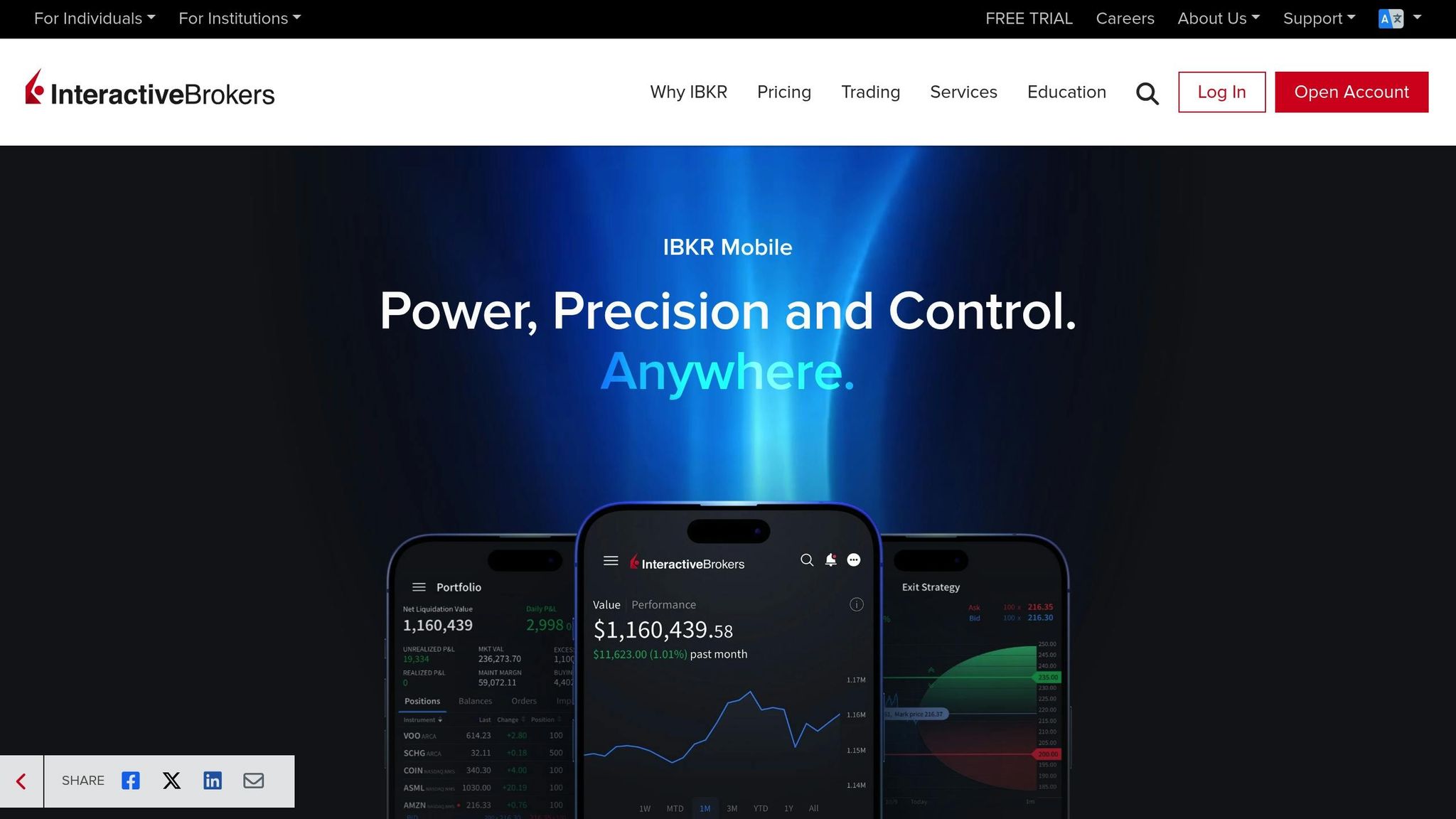
If you're familiar with IBKR's desktop platform, you'll feel right at home using their paper trading feature on mobile and web platforms. IBKR extends its paper trading functionality across multiple platforms, including IBKR Mobile, GlobalTrader, IBKR Desktop, and the Client Portal, giving you the flexibility to practice on virtually any device [2]. The tools, features, and overall interface are consistent across platforms, ensuring a smooth experience whether you're on your phone, tablet, or computer [2].
Activating paper trading is simple. On Android, tap the three dots icon, while on iOS, flip the "Paper Trading" switch to enter practice mode [13][14]. You'll log in using the same credentials as your live account.
The mobile app supports a wide range of assets, including stocks, options, futures, currencies, bonds, and funds across more than 160 markets [15]. You can also experiment with advanced order types like limit, stop, bracket, VWAP, Iceberg, and Adaptive Algo orders. Tools such as the Options Wizard and Strategy Builder are available to help refine your trading strategies [15]. Plus, your watchlists, alerts, and account settings automatically sync across IBKR Mobile, TWS, and the Client Portal, so you never lose track of your preferences [15].
"Paper trading is a great way to explore IBKR's platforms, tools, and features in a safe, simulated, trading environment." – IBKR Campus [2]
Market data subscriptions from your live account carry over to your paper trading account, though quotes may be delayed if you don't have active real-time data [2][4]. You can control whether real-time data is shared with your paper account by navigating to User Menu > Settings > Paper Trading Account in the Client Portal [11]. For administrative tasks, such as resetting your simulated balance back to $1,000,000 or accessing account statements, you'll need to use the Client Portal [12].
This cross-platform compatibility makes it easy to transition between practice and live trading, whether you're using TWS or any of IBKR's other applications.
Conclusion and Next Steps
Key Takeaways
TWS paper trading provides a risk-free way to sharpen your skills with advanced tools and order types, all while working with a simulated equity of $1,000,000 [4][5]. This platform mirrors your live account's permissions and base currency, ensuring the strategies and execution methods you practice here can transition smoothly to live trading [2][4].
"It is important to remember that placing trades in a paper account is recommended before any live trading." – Interactive Brokers [16]
Paper trading is an excellent opportunity to fine-tune hotkeys, test algorithmic trading strategies, and practice various order types. This helps prevent mistakes like incorrect sizing or typos in live trading. For those developing algorithmic strategies, the simulated environment is perfect for debugging API code and confirming that orders process as intended. You can even reset your simulated balance - back to $1,000,000 or a custom amount - anytime via the Client Portal, giving you a clean slate for testing new strategies [2].
With these tools and insights, transitioning to live trading becomes a natural progression.
Moving from Paper Trading to Live Trading
Once you're confident with simulated trades, you can step into live markets with ease. The transition is simple since both environments use the same TWS installation and interface. To switch, log out of the platform and select "Live Trading" on the login screen. Keep in mind that your live account must be approved by IBKR, although funding it isn't required right away [5].
While paper trading is highly realistic, it's important to remember that real market execution might differ. For example, assets with wide bid-ask spreads can result in simulated fills that don't fully reflect actual market liquidity. To minimize risks, consider starting with smaller position sizes in live trading. This approach helps you adjust to the psychological differences of managing real capital and account for potential execution slippage. Lastly, ensure your live account includes the necessary market data subscriptions, as both environments share the same data permissions.
Interactive Brokers' Paper Trading Account Setup + Market Data Subscriptions
FAQs
What is the difference between paper trading and live trading on TWS?
Paper trading on TWS gives you the chance to practice trading in a simulated setting with virtual funds. Since no real money is involved, you don’t need to worry about market fees, slippage, or actual financial risks. This makes it a safe way to test out strategies and get familiar with the platform’s features.
On the other hand, live trading happens in real markets using actual money. This means transaction costs, market conditions, and risks are all very real. Paper trading serves as an excellent way to build your confidence and sharpen your skills before stepping into live trading.
Can I personalize the TWS interface while paper trading?
Yes, you can adjust the Trader Workstation (TWS) interface even while using paper trading mode. Through the Global Configuration menu, you can modify various elements like toolbars, menus, color themes, and the layout of tools such as the FXTrader grid. For instance, you can choose to show or hide toolbars, customize color schemes, or select which fields - like average cost or P&L - are visible, tailoring the workspace to fit your preferences.
Since paper trading uses the same TWS client as live trading, all your customizations will seamlessly carry over when switching between demo and live accounts. This setup lets you practice in an environment that matches your ideal workflow, helping you refine your strategies and gain confidence without any financial risk.
What can I do if I have trouble installing TWS?
If you're having trouble installing Trader Workstation (TWS), here are some steps to help you troubleshoot:
- Close unnecessary programs: Before starting the installation, shut down other applications to prevent potential conflicts.
- Verify the file location: Make sure the installation file is saved as
tws_install.exeand located in the correct directory, like your C: drive or the folder you chose. - Restart stalled installations: If the process freezes, cancel it and relaunch the installer.
- Review your security settings: Check if your antivirus or firewall is blocking the installation and adjust settings if needed.
These tips address most typical installation issues. If problems continue, confirm you're using the right installation file and give it another shot.