DX Copier for Trade Duplication
DX Copier simplifies trading by automatically replicating trades from a primary "leader" account to multiple "follower" accounts in real time. Designed for futures traders using the best futures trading platforms like NinjaTrader, it handles everything - entries, stop-losses, and exits - with precision, often syncing actions in under 100ms. Key features include automatic symbol mapping for scaling trade sizes across accounts and top VPS providers compatibility for uninterrupted operation. This tool eliminates manual errors, saves time, and ensures consistent execution, even during fast-paced market conditions like trading E-mini or Micro E-mini contracts.
Key Highlights:
- Real-Time Trade Replication: Syncs trades across accounts in milliseconds.
- Symbol Mapping: Adjusts trade sizes automatically for different account balances.
- VPS Support: Ensures 24/7 uptime and low latency for smooth performance.
- Risk Management: Offers position limits, stop-loss rules, and margin controls.
DX Copier is ideal for traders managing multiple accounts, scaling strategies, or working with proprietary firms. Proper setup, including VPS hosting and symbol mapping, ensures consistent and reliable operation.
Prerequisites and Compatibility
Before diving into DX Copier's real-time trade replication, it's important to confirm that your VPS and broker connections meet the necessary technical standards. A properly configured system is crucial to ensure smooth and efficient performance.
System and Software Requirements
To run DX Copier effectively, you'll need a Windows-based setup. TraderVPS secure managed VPS hosting picks come equipped with Windows Server 2022 and NVMe SSD storage, designed to minimize latency. For optimal results, make sure your system can handle the workload:
- Basic setup: At least 1 CPU core and 4GB of RAM to run up to four trading terminals.
- Advanced setup: A dedicated server with at least 6 CPU cores and 16GB of RAM for handling 25 or more terminals[8].
Your software stack should include NinjaTrader 8, the DX Copier application (such as Local Trade Copier™ or Traders Connect), and the API connection provided by your broker. Additionally, a high-speed, low-latency network is essential - networks based in Chicago-area data centers are particularly effective for rapid trade execution.
Supported Platforms and Brokers
DX Copier primarily uses NinjaTrader 8 as the master platform for U.S. futures trading. This allows for seamless trade copying across live, demo, and proprietary account. .On the receiving side, the copier supports DXTrade-based setups, with some versions extending compatibility to platforms like MetaTrader 4, MetaTrader 5, TradeLocker, MatchTrader, and cTrader.
For U.S.-based clearing and execution, DXTrade collaborates with firms such as Apex, Vision Financial Markets, and Drivewealth. DXTrade-compatible brokers like HeroFX and SwayMarkets are also supported. Many proprietary trading firms, including Goat Funded Trader, Lark Funding, FundedPrime, FXIFY, and Lionheart Funding, enable copy trading as well. However, it's essential to confirm that API access is available with your chosen broker or firm, as some - like FTMO - intentionally restrict DXTrade API functionality[9].
Once you've verified platform and broker compatibility, you'll need to configure your VPS properly for U.S. trading standards.
U.S. Settings for DX Copier
For futures trading in the U.S., configure your VPS to Central Time (Chicago) to align trade execution with CME session timings. Additionally, ensure that all account balances and trade values are displayed in USD for consistency.
"Trades are copied based on the broker time shown in the Market Watch window, not your computer's local time, to avoid sync issues." - Rimantas Petrauskas, Programmer and Author[9]
When setting up symbol mapping, make adjustments as needed to account for differences in contract naming conventions. For example, map "ES" to "MES" to ensure proportional execution across all follower accounts[5]. Proper symbol mapping is key to maintaining accuracy in trade replication.
How to Set Up DX Copier on TraderVPS
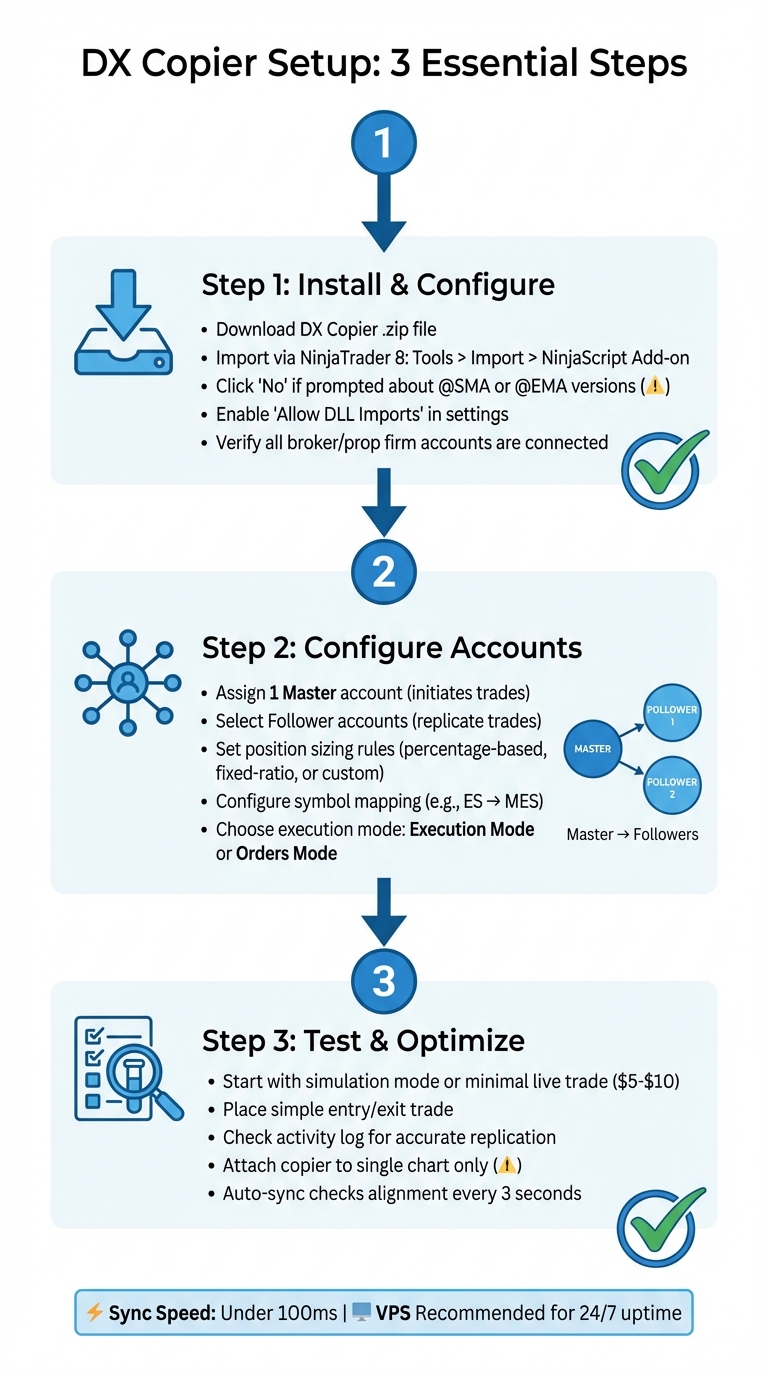
DX Copier Setup Guide: 3-Step Installation Process for NinjaTrader
Installing and Configuring DX Copier
Start by downloading the DX Copier .zip file. Once downloaded, log into TraderVPS using Remote Desktop. Open NinjaTrader 8, navigate to Tools > Import > NinjaScript Add-on... in the Control Center[10], and select the .zip file to begin the import.
If you’re prompted about newer versions of indicators like @SMA or @EMA, click 'No' to maintain the platform's core functionality[10]. After the import finishes, enable Allow DLL Imports in NinjaTrader settings. This step ensures the copier can communicate with external servers to execute trades[9].
Before activating the copier, double-check that all your brokerage or prop firm accounts are connected and visible in NinjaTrader. The copier only works with accounts listed on the platform's connection list[7]. Next, configure account relationships to ensure smooth trade replication.
Setting Up Leader and Follower Accounts
Open the DX Copier interface and assign one account as the Master while selecting others to act as Followers. The Master account initiates trades, and the Follower accounts automatically replicate those trades[7].
Adjust position sizing rules to fit your account balances. Options include percentage-based sizing (e.g., copying 50% of the Master account's trade size), fixed-ratio duplication, or custom sizing rules[7]. If your accounts have varying balances, the Auto-Adjust (AAM) feature calculates lot sizes based on the balance ratio between the leader and follower accounts[9].
For trading different contract sizes or when brokers use different naming conventions, set up symbol mapping. For instance, map "ES" to "MES" to copy trades from standard E-mini S&P contracts to Micro E-mini contracts[5]. You can also configure prefix or suffix adjustments, like removing ".pro" or adding "m.", to ensure symbol names align across platforms[11].
Select your execution mode: Execution Mode replicates trades as they fill, while Orders Mode copies trades as they’re placed[7]. Futures traders often prefer Execution Mode for its precision.
Once roles are assigned and settings adjusted, proceed to test and fine-tune your setup.
Testing and Optimizing Your Setup
Begin testing in simulation mode or with a minimal live trade to avoid potential restrictions from your broker[7]. Place a simple entry and exit trade, then check the activity log to confirm that follower accounts accurately replicate entries, stop-losses, and take-profits.
If you encounter delays or mismatched trades, review your symbol mapping settings and ensure your WebRequest URLs are correctly configured in NinjaTrader’s settings[9].
Attach the copier to a single NinjaTrader chart to prevent duplicate order requests[9]. This setup allows the copier to monitor and copy trades across all symbols in your account from that one chart. An auto-sync engine checks account alignment every 3 seconds, which is especially helpful during volatile market conditions[5].
Common Use Cases for Futures Traders
Copying Trades Across Multiple Accounts
Futures traders often juggle multiple accounts, whether it's to handle different risk strategies or manage client portfolios. DX Copier simplifies this process by allowing a single Master account to execute trades, which are then automatically mirrored across multiple Follower accounts [12][4].
One of the standout features is the ability to customize risk per account. For example, you can assign unique risk factors to each follower, adjusting position sizes based on the account's equity. If the Master account places a two-lot ES trade, smaller follower accounts can automatically scale it down to match their equity levels. This automation not only saves time but also reduces the likelihood of manual entry errors.
Beyond managing multiple accounts, DX Copier supports smooth operations across various trading platforms, making it an incredibly versatile tool.
Cross-Platform Trade Copying
DX Copier excels at connecting different trading platforms. For instance, it can copy trades from MetaTrader 4 (MT4) to DXTrade, using NinjaTrader as an intermediary hub [3][9]. This feature is particularly useful for traders working with brokers or proprietary firms that rely on diverse software systems.
The copier automatically maps trading symbols and adjusts for differences in contract sizes between platforms [9][5]. However, one limitation to keep in mind is that when copying trades from MT4 to DXTrade, only executed trades are transferred - pending orders, stop losses, and take profit levels are excluded [13].
Managing Risk and Margin Across Accounts
When trading across multiple accounts, effective risk management and margin strategies become even more critical. Each additional Follower account increases your overall market exposure. For instance, a two-lot ES trade on the Master account could translate to eight contracts across four Follower accounts, requiring careful attention to margin requirements.
DX Copier helps keep your accounts aligned in real time, preventing position drift that could lead to margin calls [5]. A centralized dashboard gives you a clear, aggregated view of all accounts, making it easier to monitor combined position sizes and overall market exposure [12][4].
For accounts with varying margin capacities, the copier offers symbol mapping as a risk control measure. For example, it can automatically convert ES trades from the Master account into MES trades for smaller Follower accounts, ensuring they stay within their margin limits [5]. Additional safeguards include setting position limits, maximum loss thresholds, and automatic stop-loss rules across all connected accounts [4].
"Protect your capital with advanced risk management tools. Set position limits, max loss caps, and automatic stop-loss rules across all your copying accounts to safeguard every trade." - Tradesyncer [4]
To ensure uninterrupted performance, running DX Copier on a VPS keeps all risk management settings active around the clock, even if your local computer disconnects [4][6].
Monitoring, Troubleshooting, and Best Practices
Monitoring Copier Performance
Start by checking the Accounts Dashboard. A green button and green account dots indicate everything is functioning smoothly[14]. If you see a red dot, it means an account is disconnected and won’t receive trades.
NinjaTrader’s Log tab in the Control Center is your go-to for reviewing execution history and spotting error messages[14]. Regularly reviewing this tab can help you catch issues early, minimizing their impact on your trading. If the "Refresh Positions" button appears, it’s a clear sign that the copier has detected a mismatch between your Master and Follower accounts. This serves as an immediate alert for synchronization issues[14].
For setups with over 20 follower accounts, keep an eye out for performance slowdowns. If you notice pending orders exceeding 200, switch to "Executions" mode to prevent the platform from becoming overloaded[14]. Additionally, advanced synchronization checks occur every 3 seconds, ensuring close alignment between accounts[5].
Fixing Common Issues
When something goes wrong, here’s how to quickly identify and resolve common problems.
If trades aren’t being copied, start with the basics. Make sure the copier toggle is set to "ON" and confirm that the Master account is selected[14]. Connection issues often stem from incorrect Server URLs. For DXTrade connections, the URL must include both "https://" and a trailing forward slash (e.g., https://demo.dx.trade/)[11]. Also, ensure DLL imports are enabled and that broker URLs are added to the "WebRequest" allowed list in the platform settings[9].
Symbol mapping is another area to check, especially if naming conventions differ between platforms[11][5]. If you notice discrepancies in position sizes, it’s likely due to slippage rather than a copier malfunction. Minor PNL differences between accounts are normal and expected[14].
| Issue | Common Cause | Solution |
|---|---|---|
| Trades Not Copying | Copier toggled OFF or Master not selected | Toggle to "ON" and select the Master account[14] |
| Connection Failed | Incorrect Server URL | Use the correct base URL with "https://" and a trailing slash[11] |
| Symbol Mismatch | Different naming conventions | Enable Symbol Mapping (e.g., GOLD=XAUUSD)[11] |
| Account Not Visible | Account never connected in NinjaTrader | Connect the account first; use the [Restore] button[14] |
Best Practices for Reliable Operation
To ensure smooth operation, always keep both NinjaTrader and your Trade Copier updated to their latest versions. Updates often fix compatibility issues that could lead to execution errors[14]. Attach the copier to just one chart - adding it to multiple charts can cause redundant broker requests and result in order rejections[9].
Running DX Copier on a VPS is a smart move for uninterrupted operation. A reliable VPS ensures 24/7 uptime, even if your local computer is turned off. Many providers offer 99.999% uptime, reducing the risk of missed trades[1]. Additionally, disable any "inactive workspace" restrictions in your indicator settings to keep the copier running when you switch tabs[14].
Before trading with real money, test your setup with small trades between $5 and $10. This allows you to confirm everything is functioning correctly without risking significant capital[7]. This approach also helps you avoid minimum trade restrictions during the initial configuration.
"The copier focuses on trade replication. Use each platform's native reporting tools for performance tracking." - Rimantas Petrauskas, Founder, mt4copier.com[9]
Conclusion
DX Copier simplifies trade replication across NinjaTrader accounts by automating the process. However, setting it up requires attention to detail - ensuring correct server URLs and symbol mapping is essential. A well-executed configuration not only guarantees consistent trade replication but also helps avoid synchronization issues, forming the backbone of the copier's dependable performance.
Running DX Copier on a VPS is a game-changer, eliminating the risks tied to local computer setups. With 99.999% uptime[2], the copier operates around the clock - even if your home computer is off. This level of reliability is especially important when managing multiple accounts, whether they’re prop firm accounts, live trading accounts, or demo accounts, all from a single leader account.
The system’s effectiveness is backed by real-world results. Traders have used DX Copier to pass multiple evaluations and manage numerous prop firm connections effortlessly. This sentiment is echoed by users like Dominick Carney, who said:
"As long as your accounts are connected, you follow the process, and you're intentional about enabling or disabling accounts... everything works smoothly." – Dominick Carney, Verified User[6]
With its low-latency execution and automated position sizing, DX Copier allows traders to scale their operations without the hassle of manual intervention. Once your setup is verified, the copier takes over repetitive tasks, leaving you free to focus on strategy and managing risk. It’s always a good idea to start with minimal trades to test the waters before fully deploying the system.
When paired with TraderVPS, DX Copier becomes even more powerful. TraderVPS provides the high-performance infrastructure needed to ensure smooth, automated trading, giving futures traders the tools to efficiently scale their operations. Together, they create a reliable and scalable solution for modern trading.
FAQs
How does DX Copier minimize latency when duplicating trades?
DX Copier delivers lightning-fast performance by running directly on your VPS or PC, eliminating delays often caused by external cloud processing. With its direct API connections and a high-speed order-matching engine, it replicates trades locally in just milliseconds. This setup ensures quick and dependable execution, making it ideal for automated trading workflows.
What are the main advantages of using a VPS with DX Copier?
Using a virtual private server (VPS) with DX Copier ensures a steady and uninterrupted trading environment, free from issues like power outages, internet disruptions, or computer failures. This setup guarantees that trades are mirrored across multiple accounts in real time, so no signals are lost.
A VPS also provides ultra-low latency connections from professional data centers, delivering faster and more reliable order execution compared to a typical home setup. This is especially important for futures and high-frequency traders, where every millisecond counts, reducing slippage and boosting precision.
On top of that, a VPS offers a secure and dedicated space for running DX Copier alongside platforms like NinjaTrader. It simplifies updates, keeps the copier isolated from other software, and provides scalable resources to meet growing demands. This makes it a smart choice for managing complex trading workflows across multiple accounts or platforms.
How does DX Copier handle symbol mapping and account balance differences?
Symbol mapping in DX Copier ensures that the instrument names used on a leader account align perfectly with the correct symbols on follower accounts. For example, if the leader trades ES (E-Mini S&P 500) but a follower account uses MES (Micro S&P 500), the copier automatically matches these symbols. This can be done through its built-in rules or by setting up custom mappings, making it easy to mirror trades across different platforms.
When follower accounts have different balances, DX Copier adjusts trade sizes using a proportional lot calculator. For example, if a leader places a trade of 2 ES contracts on a $10,000 account, a follower with a $5,000 account might execute 1 MES contract. This ensures that risk is managed consistently, no matter the account size.
These adjustments happen in real time, allowing traders to replicate strategies across multiple accounts without worrying about symbol mismatches or balance differences. It’s a practical solution for streamlining automated trading, especially in VPS-hosted setups.