Quantower on AMP Futures Explained
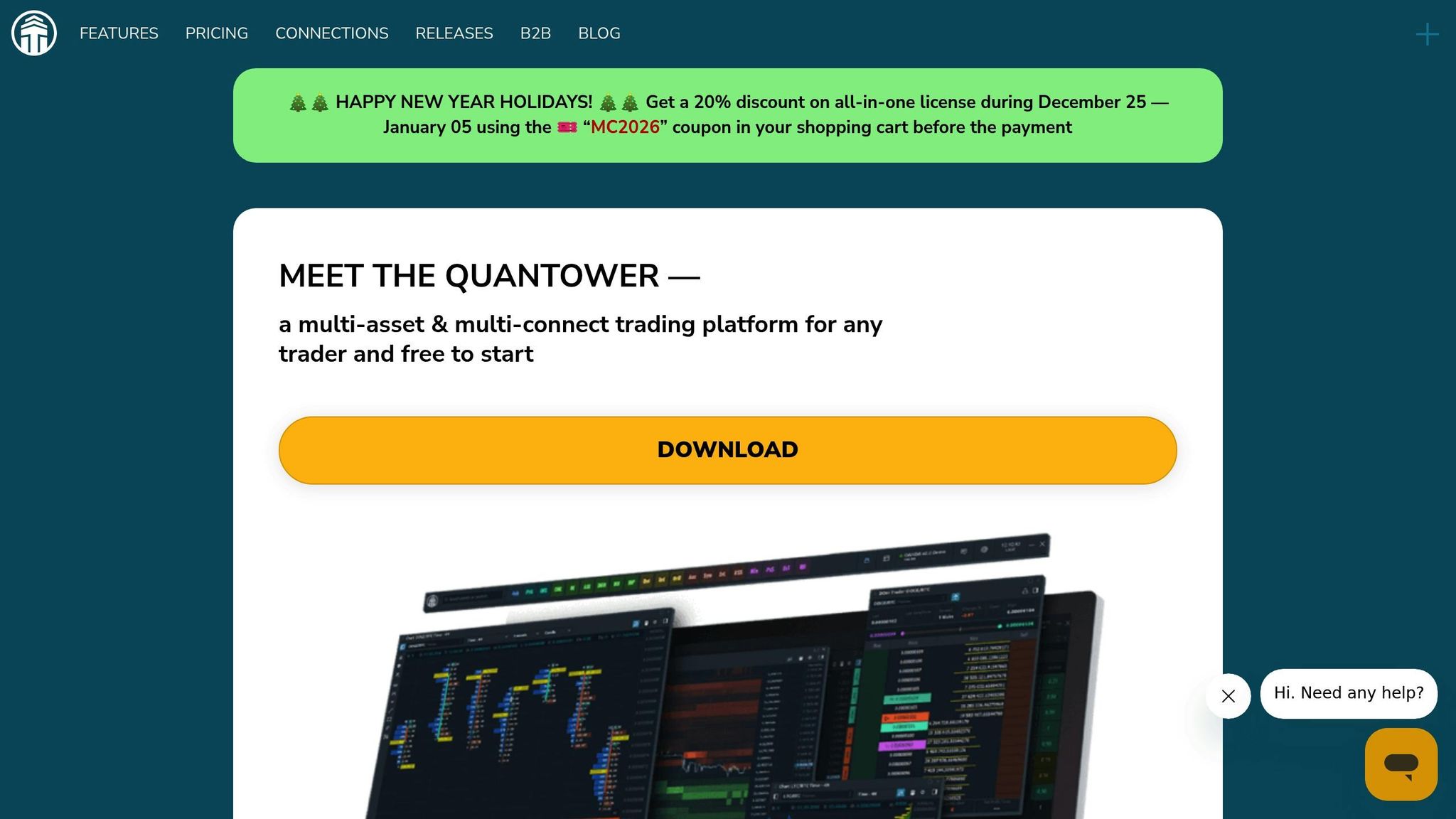
Quantower is a professional trading platform provided for free to AMP Futures users. It offers advanced tools like volume profiles, footprint charts, and DOM Surface panels, making it ideal for futures trading. Users can connect to over 75 global exchanges via CQG and customize their setup with a modular interface. The platform supports algorithmic trading in C# and has no platform fees for AMP customers.
Key Takeaways:
- Free Access: AMP Futures clients save $100/month with complimentary Quantower access.
- Advanced Tools: Includes VWAP, TPO charts, and heatmapped DOM for order flow analysis.
- Global Market Access: Connect to major exchanges like CME, CBOT, and EUREX.
- Customizable: Modular design tailors to individual trading styles.
- Portable Installation: Easy setup without altering system registries.
For optimal performance, Quantower can run on TraderVPS, ensuring low latency and high reliability for futures trading.
Setting Up Quantower with AMP Futures
AMP Futures Account Requirements
Getting started with an AMP Futures account is simple. To activate your account and maintain a live data connection, you’ll need to make a minimum deposit. This also grants you free access to Quantower, a platform that otherwise costs $100 per month [3].
Before beginning your application, have a digital copy of your ID (like a passport or driver’s license) and proof of address (such as a utility bill) ready. These documents will speed up the verification process. Typically, approvals are quick once the AMP accounts team reviews your submission.
| Step | Action | Details |
|---|---|---|
| 1 | Registration | Head to the AMP Client Portal to begin the application process [5]. |
| 2 | Online Form | Fill out personal details, contact info, and trading experience [5]. |
| 3 | Documentation | Upload your ID and proof of residency for verification [5]. |
| 4 | Approval | Wait for the accounts team to review and approve your application [5]. |
| 5 | Funding | Deposit a minimum of $100 using ACH, wire transfer, or another accepted method [5][6]. |
| 6 | Platform Setup | Receive CQG credentials via email and connect to Quantower [5][7]. |
When setting up your account, be sure to choose the CQG connection - this is required to qualify for the free version of Quantower [3]. AMP also offers a 28-day demo option if you’d like to try it out first [1].
Once your account is approved, the next step is downloading and installing Quantower.
How to Download and Install Quantower
Quantower offers a portable installation, meaning it doesn’t alter system registries. Instead, it extracts to a folder you select, making it easy to move the platform to other devices. You can even copy the folder to a removable drive and use it on multiple computers while keeping your settings intact [8].
Here’s what you’ll need to run Quantower:
- Windows 10
- .NET Framework 4.8
- 16GB RAM
- A 4-core CPU
- An SSD
The platform requires about 1 GB of disk space, though this can grow depending on how much historical data you load [8].
After installation, manually allow the Starter.exe file through your firewall for both incoming and outgoing connections. This ensures the platform connects to data feeds without issues. Keep in mind that Microsoft no longer supports Windows 7 or 8, so stick with Windows 10 to avoid any compatibility problems [8].
Once installed, your Quantower setup will be ready for seamless integration with AMP Futures.
Connecting to AMP Futures Through CQG
After installing Quantower, you’ll need to connect it to your AMP Futures account via CQG. Once your account is approved, CQG will send you an automated email with your demo or live credentials. Be sure to check your spam folder if the "Welcome to AMPConnect" email doesn’t arrive within five minutes [7].
When you first launch Quantower, it will open with an AMP Futures connection in "Info Mode" and load a default workspace [8][9]. If you’re an existing AMP/CQG customer, your live trading credentials will be ready to use immediately - no additional setup required [7].
Quantower doesn’t come with a predefined list of symbols, so you’ll need to manually add tickers from the AMP "Tradable Symbols" page [4][10]. Make sure the correct exchange is activated in your connection settings. If you notice gaps in data or incorrect chart information, simply right-click and select "Reload history (server)" to refresh [10].
For issues like incorrect credentials or connection timeouts, double-check your login details and internet connection. If problems persist, clearing temporary folders may help resolve the issue [10].
How to Connect AMP Futures Account to Quantower
Key Quantower Features for Futures Trading
When you connect to AMP Futures, you unlock a range of powerful trading tools, all included at no extra cost for AMP customers [2]. Below, we’ll explore how these features enhance your futures trading experience.
Charts and Technical Indicators
Quantower offers a variety of chart types, including Bar, Candle, Line, Area, and Dotted Line charts. The chart panel is thoughtfully structured into five key sections: a top toolbar for quick controls, the main chart area for price data, a sidebar for tools and indicators, chart-specific order entry buttons, and a bottom toolbar for volume analysis.
The sidebar is your go-to spot for tools like technical indicators, drawing options, and advanced volume features. Some of the standout tools include Footprint Charts, Volume Profiles, VWAP, Anchored VWAP, and TPO Profile Charts. You can even star your favorite tools for quick access.
For those who prefer speed, Quantower offers Mouse Trading mode, allowing you to place orders directly on the chart with a click. Alternatively, Keyboard Trading mode lets you use hotkeys for lightning-fast order execution.
In addition to charts, Quantower’s order flow tools provide deeper insights into market dynamics.
DOM and Volume Analysis
The DOM Trader panel showcases the exchange’s order book in a price ladder format, enabling one-click actions to place, modify, or cancel Market, Stop, and Limit orders. You can also drag and drop order lines on the chart to adjust prices visually, giving you precise control over your trades.
The heatmapped DOM Surface adds another layer of insight by visualizing liquidity levels. It highlights areas where large orders are concentrated, helping traders identify key price zones that could act as support or resistance. The "DOM levels contrast" scroller further pinpoints high-volume price levels, while thin liquidity areas on the heatmap often signal potential for rapid price movements.
For a detailed breakdown of order flow, Cluster Charts analyze each candle to display buy and sell volumes at specific price levels. These can be paired with the Time Statistics tool, which reveals volumetric data and highlights periods of aggressive buying or selling. For even more precision, the Details Inspector lets you dive into the size and execution time of individual trades.
Power Trades Scanner
The Power Trades Scanner is designed to spot zones where a high number of orders are executed in a very short time. These zones often represent short-term anomalies that can influence price movements [3].
"Power Trades shows the zones with the execution of a large number of orders in a very short time. These zones are the result of a short-term abnormal event that is affect price changes." - AMP Futures [3]
Running Quantower on TraderVPS
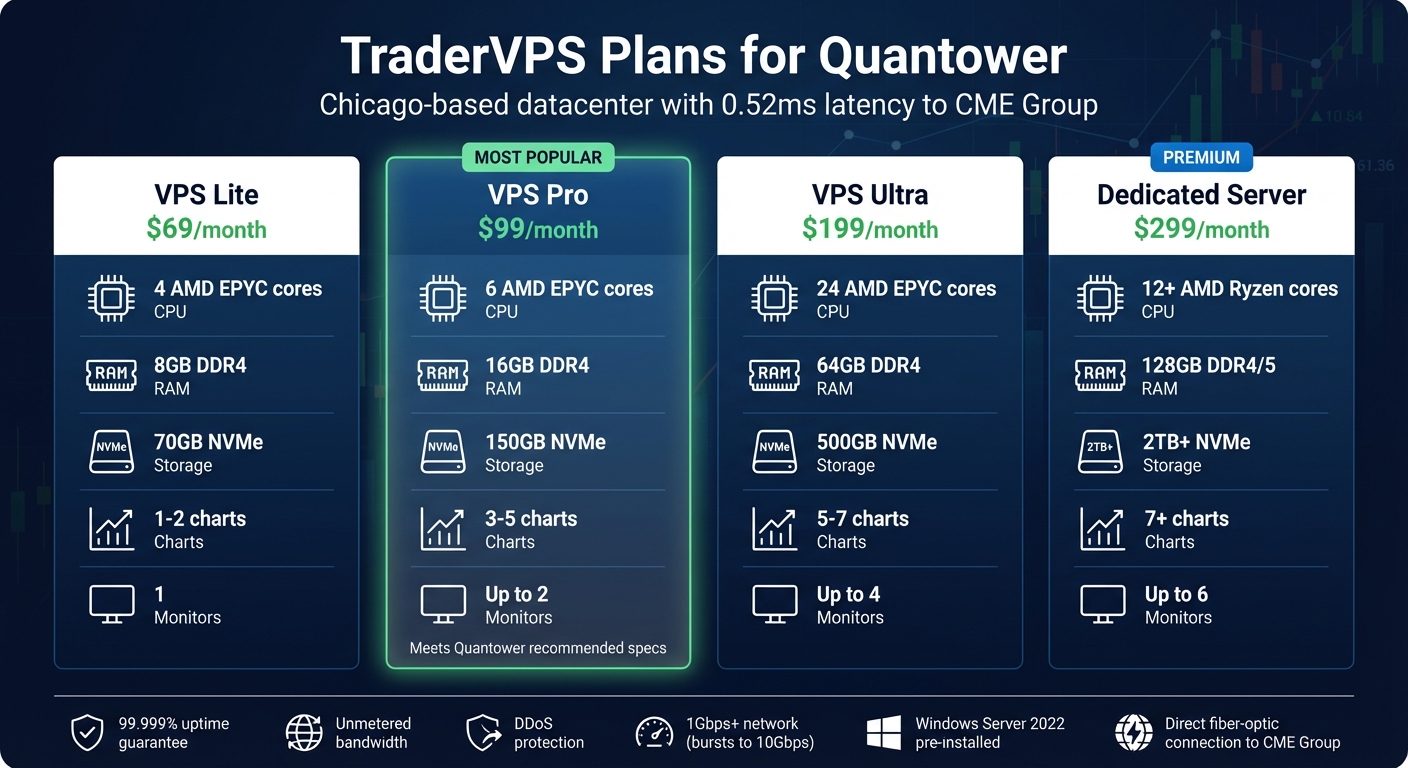
TraderVPS Plans Comparison for Quantower Futures Trading
In futures trading with Quantower and AMP, every millisecond counts. To make the most of Quantower's advanced trading features, it's essential to prioritize speed and reliability. Running the platform on your home computer can lead to issues like Wi‑Fi interruptions, power outages, or higher latency from your internet provider. This is where TraderVPS steps in. Hosting your trading setup on their dedicated servers, located in a Chicago-based datacenter just steps from the CME Group's matching engines, minimizes connectivity risks. This setup ensures your Quantower platform operates at top speed, perfectly complementing its advanced functionality [11].
Why Use TraderVPS for Quantower
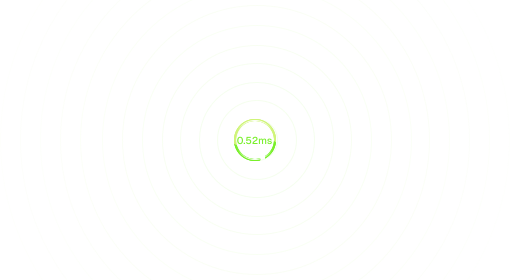
The standout benefit of TraderVPS is its ultra-low latency. With a direct fiber-optic cross-connect to the CME Group exchange, TraderVPS achieves latencies as low as 0.52ms. As of December 11, 2025, it supported a 24-hour trading volume of $16.42 billion [11]. This direct connection minimizes order execution delays and reduces slippage, which are critical for futures traders.
TraderVPS also ensures 99.999% uptime, so your automated strategies and order execution tools stay operational around the clock. Their infrastructure is powered by AMD EPYC processors, DDR4/5 RAM, NVMe M.2 SSDs, and a 1Gbps+ network connection (with bursts up to 10Gbps). This setup is designed to handle market data efficiently, even during periods of high volatility [11].
Migrating Quantower to TraderVPS is straightforward. Since Quantower is a portable application that doesn’t rely on the system registry, you only need to copy the Quantower folder to your remote desktop [8]. The VPS also comes pre-installed with Windows Server 2022, optimized for trading, and allows secure remote management of your AMP Futures account [11].
TraderVPS Plans for Quantower
TraderVPS offers four service tiers tailored to the specific needs of high-performance futures trading:
- VPS Lite ($69/month): Includes 4 AMD EPYC cores, 8GB DDR4 RAM, and 70GB NVMe storage. Ideal for running 1–2 charts.
- VPS Pro ($99/month): The most popular choice, featuring 6 cores, 16GB RAM, and 150GB NVMe storage. This option is suitable for 3–5 charts and supports up to 2 monitors, meeting Quantower's recommended specs of 16GB RAM, a 4-core CPU, and SSD storage [8].
- VPS Ultra ($199/month): Designed for more demanding setups, offering 24 cores, 64GB RAM, and 500GB NVMe storage. Supports 5–7 charts across up to 4 monitors.
- Dedicated Server ($299/month): The top-tier plan features 12+ AMD Ryzen cores, 128GB RAM, and 2TB+ NVMe storage. Perfect for setups with 7+ charts and up to 6 monitors.
All plans come with unmetered bandwidth, DDoS protection, and the same ultra-low latency connection to the CME Group [11].
Advanced Quantower Tools
Quantower takes trading to the next level with advanced tools designed to deepen trade analysis and strategy testing. One standout feature is the Synthetic Symbols panel, which allows you to create custom instruments by combining multiple futures contracts into a single tradable spread. This is particularly helpful for analyzing market relationships or setting up market-neutral positions.
"Synthetic Symbols panel allows to create any non-standard instruments (symbols) or spreads that you can both trade and use as an indicator of the current market situation or market divergences." – AMP Futures [12]
Synthetic Symbols and Spread Trading
Creating a synthetic symbol is straightforward. Open the Synthetic Symbols panel, click "Create Synthetic", and assign a name to your spread. Each component, known as a Leg, is assigned a weighting coefficient to determine its trade size. Traders often use this tool to explore price relationships between assets, like WTI and Brent Crude Oil, or to take advantage of broker arbitrage by holding opposing positions across different brokers.
Once your synthetic symbol is saved, it appears in your instrument list and can be charted just like any standard futures contract. To further enhance analysis, the Chart Overlay feature allows you to compare multiple assets on a single chart, helping you spot correlations before constructing your custom spread. For added precision, Quantower also provides simulation tools to test these strategies without any financial risk.
Trading Simulator and Market Replay
Quantower’s simulation tools are perfect for refining strategies in a risk-free environment. The Trading Simulator creates a virtual trading space where you can tweak parameters like initial balance and execution delay. Orders placed in this mode are clearly marked with a "Simulator" label, ensuring live trading is disabled.
The Market Replay panel lets you analyze historical market data at your preferred speed. Simply launch the panel, select your instrument, choose a data type (Tick, 1 minute, or 1 day), and pick a modeling scheme - whether it’s OHLC (Open, High, Low, Close), Open, or Close. OHLC mode is ideal for standard testing, while Open and Close modes are faster and suited for strategies focused on bar boundaries. You can also set execution delay to "Range" or "Fix" to mimic the slippage conditions of live markets.
Both tools support three netting methods - One Position, Multiple per Side, and Multiple Positions - giving you flexibility to test various position management styles. Best of all, these advanced features come at no extra cost for AMP Futures customers.
Conclusion
Quantower, when paired with AMP Futures, offers a professional-grade trading setup without the usual $100 monthly platform fee[2]. It includes advanced tools like Volume Profiles, Footprint charts, VWAP, and Power Trades, all accessible through a portable installation.
This portability simplifies setup and deployment, as highlighted earlier. Beyond convenience, Quantower provides powerful analytics and simulation tools. Running it on TraderVPS ensures the platform operates smoothly, meeting its hardware requirements: 16 GB RAM, a 4-core CPU, and an SSD[8]. A dedicated VPS ensures consistent performance - essential for running automated strategies or handling complex tasks like analyzing multiple instruments with synthetic symbols and spread trading.
With seamless CQG connectivity, analytical panels, and simulation features, Quantower supports leading tools for futures trading[4]. From backtesting with Market Replay to managing live trades via the DOM Trader, having reliable infrastructure is critical for maintaining execution quality and uninterrupted performance.
FAQs
How do I set up Quantower on TraderVPS for the best performance with AMP Futures?
To get Quantower running smoothly on TraderVPS, start by setting up a VPS with Windows 10, at least 16 GB of RAM, a 4-core CPU, and an SSD for faster data access. Make sure to install .NET Framework 4.8 to guarantee compatibility.
Next, download the latest Quantower version tailored for AMP customers and set it up as a portable application. It's best to place the installation folder on the SSD (e.g., C:\Quantower) to ensure quick access and make migration simpler if needed. Open Quantower to create a default workspace and confirm it launches without any issues.
Use your AMP credentials (or demo login) to connect to the AMP/CQG data feed. Check that the connection status is active before moving forward. For improved performance, enable hardware acceleration in the settings and adjust the chart history depth to match the available disk space. Keep your VPS and Quantower software updated to avoid any potential issues.
To minimize latency, monitor the ping to CQG servers. If you notice delays, consider relocating your VPS to a data center closer to the exchange. These steps will help optimize your trading setup and provide a more efficient experience.
What makes Quantower a great choice for trading futures with AMP?
Quantower provides AMP Futures users with a robust trading platform packed with features - all at no extra cost. Typically priced at $100 per month, AMP customers can access the full Quantower suite for free. This includes advanced tools such as the DOM Surface for order-flow analysis, TPO profile charts, a customizable DOM Trader panel, and Cluster (Footprint) charts. These tools offer valuable insights into market depth, price levels, and liquidity, empowering traders to make well-informed decisions.
The platform also offers a highly customizable and professional trading environment. With more than 40 analytical panels, including tools like volume-profile and VWAP, traders can create a workspace tailored to their specific needs. Quantower ensures fast and reliable performance with data from over 75 global exchanges through the CQG data feed, delivering low-latency execution. For those looking to go a step further, the platform’s open C# API allows advanced users to integrate custom strategies, making it a versatile and comprehensive choice for futures trading with AMP.
How do I fix connection issues between Quantower and AMP Futures?
If you're having trouble connecting Quantower to AMP Futures, the first step is to double-check your login credentials. Make sure your username, password, and any necessary API keys are entered exactly as they appear in your AMP account. Even a small typo can disrupt the connection.
Next, take a look at your internet connection. Ensure that no firewall, VPN, or proxy is blocking the required ports (usually TCP 443). If you're unsure, try temporarily disabling your security software to see if the connection works. Then, review your Quantower settings by navigating to Connections → AMP/CQG. Confirm that the correct data-feed, broker, and server address are selected.
If you're still facing issues, restart both the Quantower platform and your AMP Futures client. This can help clear any stale sessions that might be causing the problem. Additionally, check the error message displayed in Quantower and compare it with the troubleshooting tips in the platform's documentation.
Should the problem persist, reach out to Quantower's support team. Be sure to include details like the error code and a screenshot of your connection settings to help them diagnose the issue more efficiently.