Tradowate Copy Trading: Copier Usage Guide
Tradovate copy trading lets you automatically mirror trades from a main account (master) to one or more linked accounts (followers). Whether you’re opening a position, adjusting a stop-loss, or closing a trade, these actions are replicated in real time - often within milliseconds. This saves you from manually repeating trades across multiple accounts, making it ideal for managing multiple funded or personal accounts.
Here’s how it works:
- Master Account: Executes trades manually, which are copied to followers.
- Follower Accounts: Automatically replicate the master’s trades, with options to adjust trade sizes using multipliers.
- Tools: Use Tradovate’s built-in copier or third-party software via API or OAuth for advanced features like risk settings and automation.
Key benefits include:
- Time-saving: Eliminates repetitive manual trading.
- Scalability: Supports up to 200 follower accounts.
- Precision: Executes trades with minimal delay (under 100ms).
To get started, you’ll need the right accounts, setup tools, and possibly a VPS for uninterrupted performance. Testing in a demo environment is critical to ensure smooth execution before trading live.
Quick Tip: Use one of the best VPS providers for futures trading to minimize latency and avoid issues like disconnections or slippage. Tools like TraderVPS can reduce execution delays to under 1ms, ensuring trades copy accurately across accounts.
The full guide below covers setup, configuration, and best practices for successful copy trading.
Trade Copier Tutorial: How to Use and Setup Tradovate

Requirements for Setting Up Copy Trading on Tradovate
Tradovate Copy Trading Account Environment Selection Guide
To start copy trading effectively, you'll need the right accounts, proper environment settings, and compatible tools. These steps help avoid connection errors and ensure trades replicate smoothly.
Master and Follower Accounts Explained
In copy trading, you'll work with two types of accounts: Master accounts, where trades are manually executed and signals are generated, and Follower accounts, which replicate those trades automatically.
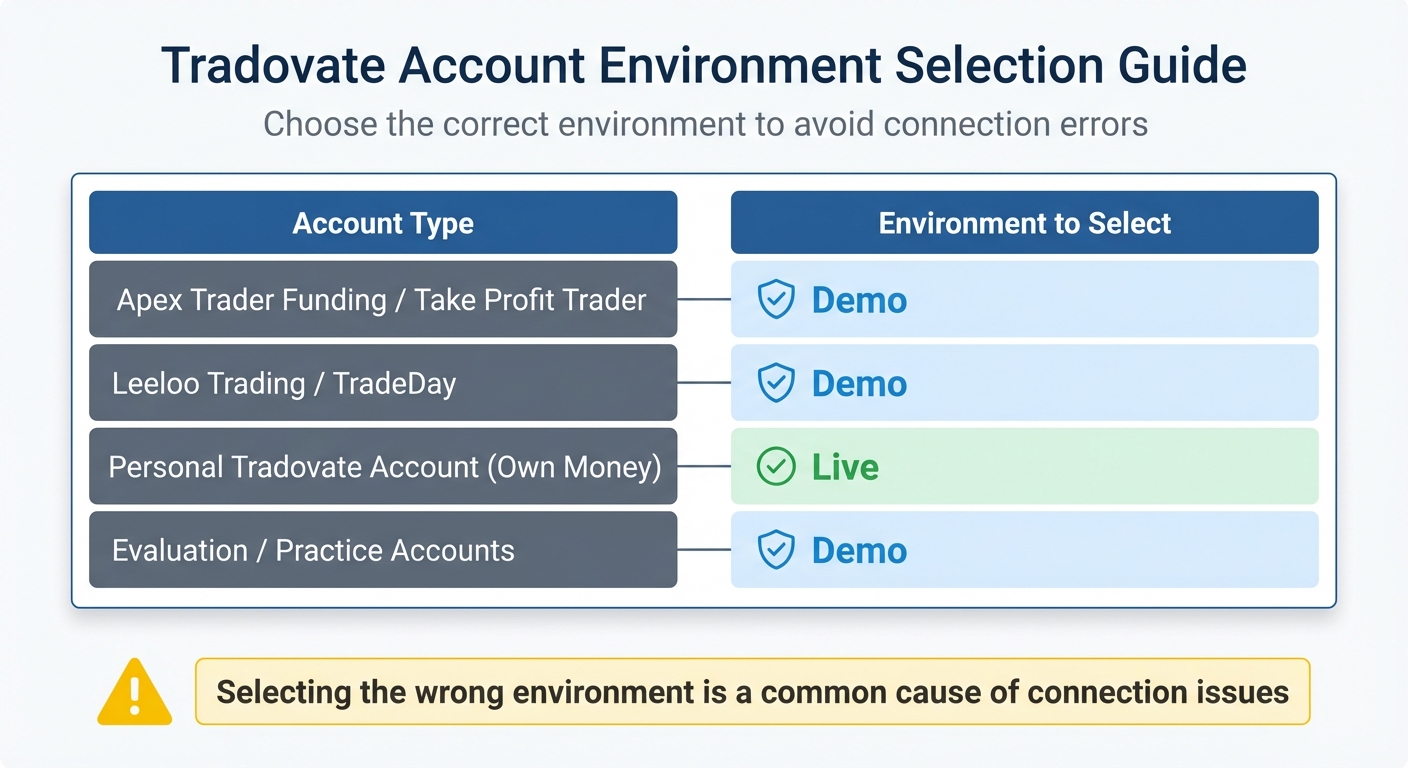
These accounts can either be personal brokerage accounts funded with your own money or accounts from proprietary trading firms like Apex Trader Funding, Take Profit Trader, or Leeloo Trading. One critical detail to keep in mind is selecting the correct environment. For example, prop firm accounts, even when labeled as "funded", typically operate in Tradovate's Demo environment, while personal accounts use the Live environment. Choosing the wrong environment is a common reason for connection issues [1].
Here's a quick reference table to guide your environment selection:
| Account Type | Environment to Select |
|---|---|
| Apex Trader Funding / Take Profit Trader | Demo |
| Leeloo Trading / TradeDay | Demo |
| Personal Tradovate Account (Own Money) | Live |
| Evaluation / Practice Accounts | Demo |
Follower accounts also offer flexibility through quantity multipliers. For instance, setting a multiplier of 2.0 will double the trade size in the follower account compared to the master account. Some tools allow you to copy trades within the same Tradovate login, while others support copying across multiple logins using secure API tokens or OAuth authentication.
Once you've set up the accounts, you’ll need to ensure platform compatibility and consider VPS hosting for uninterrupted trade replication.
Platform Compatibility and VPS Hosting
Many traders prefer using NinjaTrader as their master platform because it supports advanced features like bracket orders and ATM (Advanced Trade Management) strategies, which Tradovate's native copier might not handle as efficiently. If you're using software like NinjaTrader, reliable VPS hosting is crucial. A VPS ensures continuous uptime and low-latency execution, reducing the risk of slippage - where follower accounts execute trades at less favorable prices than the master account.
On the other hand, cloud-based copiers that connect through Tradovate's native API or OAuth integration don't require a VPS. These tools run entirely on remote servers, eliminating the need for local software. They connect directly to Tradovate and handle trade replication seamlessly. When selecting a copier, prioritize those using OAuth authentication for added security, as it allows you to grant access without sharing your Tradovate password with third-party tools.
These considerations around platform compatibility and hosting are essential for configuring your copier and managing risk effectively.
How to Set Up Tradovate Copy Trading
Once your account and secure managed VPS are ready, the next step is connecting your master and follower accounts. This involves using a trade copier, which can be Tradovate's Group Trade feature or a third-party tool like SyncFutures or PickMyTrade. After choosing your tool, you’ll configure its settings to ensure trades are mirrored accurately.
Setting Up Trade Copier Configuration
If you’re using Tradovate’s built-in Group Trade feature, start by enabling it under Add-Ons. Then, create a group in the Manage Groups section and add your follower accounts. This option works well for basic trade mirroring, but you’ll need to handle bracket orders manually [5].
Third-party copiers tend to offer more options and automation. Most rely on OAuth authentication, which lets you log in via Tradovate's official site. This method provides a secure, revocable access token without exposing your login credentials [1]. Once authenticated, assign one account as the Master (Leader) and others as Follower (Slave) accounts [1][2]. If you’re managing multiple Tradovate logins, create separate connections for each account and link them using a secure handshake token [3][4].
Before going live, test your setup in a demo environment. Place a small trade - like one contract on a micro instrument such as MNQ - to ensure everything is functioning correctly. This step helps confirm that multipliers, symbol mapping, and order execution are properly configured [1]. Once verified, you can adjust settings like quantity multipliers and risk parameters to match your trading strategy.
Setting Quantity Multipliers and Risk Parameters
After configuring your copier, it’s essential to fine-tune quantity multipliers and risk parameters to manage trade sizes effectively. Quantity multipliers determine how trade sizes scale between accounts. For instance, a multiplier of 1.0 copies the exact trade size, 2.0 doubles it, and 0.5 halves it [1][3][4]. Here’s a quick example:
| Multiplier Setting | Master Account Trade Size | Follower Account Execution |
|---|---|---|
| 0.5 | 2 Contracts | 1 Contract |
| 1.0 | 2 Contracts | 2 Contracts |
| 2.0 | 2 Contracts | 4 Contracts |
Some tools also let you set risk percentages. For example, you could risk 10% on a master account and 5% on a follower account, with the copier automatically adjusting position sizes based on account balances [6][7]. Be sure to check your prop firm’s rules on trade copying, as some firms impose restrictions on automation that could lead to account violations if not followed [4]. If you are looking to start a new evaluation, you can often find prop firm discounts to reduce your initial costs.
Managing and Monitoring Copied Trades
Once your copier is up and running, your next focus should be on ensuring accurate trade execution and keeping a close eye on performance in real time. Most third-party trade copiers offer a centralized dashboard or "Control Room" where you can view all your connected accounts, open positions, and connection statuses in one place [1][7]. This setup makes it easier to catch any discrepancies without constantly toggling between multiple Tradovate windows. It's also important to understand how different order types are executed across linked accounts.
How Copied Orders Are Executed
The way orders are copied depends on their type. Market orders are executed instantly across all linked follower accounts [3][2]. With limit orders, the process varies: they are first placed on the master account, and then follower accounts either receive them simultaneously or only after the master order is filled, depending on your copier's configuration [3][5]. Make sure all accounts are set up in the correct environment to prevent connection errors.
For OCO (One-Cancels-Other) and bracket orders, most third-party tools support these, but Tradovate’s native Group Trade feature doesn’t automatically handle bracket orders. This means you’ll need to manually manage stop-loss and take-profit exits [3][5]. Additionally, any changes you make to a limit price on the master account will automatically update on all follower accounts [3][2].
Monitoring Trade Copier Performance
Real-time monitoring is essential for identifying execution errors. Visually confirm on the follower platform that order sizes, fills, and positions match those of the master account [3][5]. Many copiers include execution logs or "Trade History" tabs, which provide detailed records of every action, such as timestamps, Master IDs, Slave Order IDs, and success or failure messages [3][5]. These logs are especially useful for verifying that quantity multipliers are applied correctly - if you’re using a 2x multiplier, for instance, the follower account should reflect exactly double the contracts.
Keep an eye on status indicators like green checkmarks to ensure active connectivity [1]. Minor differences in fill prices between accounts are common due to latency, but significant discrepancies could indicate execution issues [1][5]. A quick way to test is by placing a small 1-contract trade on a low-cost instrument like MNQ and checking if it appears in the copier’s control room and follower accounts almost instantly [1][4].
Lastly, assign clear, descriptive names to your connections - something like "Apex 50K Master" - to make troubleshooting simpler [1][4]. These monitoring habits will help you fine-tune your copy trading strategy and keep everything running smoothly.
Improving Copy Trading Performance with TraderVPS
Even with the best copier settings, your local hardware and internet connection can introduce delays that disrupt trade execution. This is where TraderVPS steps in, offering a high-speed, reliable VPS solution that operates independently of your home setup. With its optimized infrastructure, TraderVPS ensures ultra-low latency and uninterrupted performance - key factors for successful copy trading.
Faster Trade Execution with Low Latency
In futures trading, speed can make or break your results, especially when copying trades across multiple accounts. TraderVPS utilizes cutting-edge technology, including AMD EPYC processors, DDR4/5 RAM, and NVMe SSDs, to achieve lightning-fast trade execution. By hosting servers in Chicago datacenters, TraderVPS delivers latency as low as 0.52ms to the CME Group exchange [11]. This strategic location is a game-changer: while a home connection from New York to Chicago typically incurs 15–20ms of latency, TraderVPS slashes this to under 1ms [9].
This ultra-low latency means that when a market order is executed on your master account, the follower accounts replicate it within milliseconds. This precision ensures that follower accounts secure prices nearly identical to the original entry. On the other hand, home setups with latency ranging from 50–200ms risk executing trades after price movements, potentially leading to less favorable outcomes [8].
Continuous Uptime and Automated Backups
TraderVPS boasts 99.999% uptime, backed by redundant infrastructure, so your trade copier keeps running even if your local PC goes offline [11]. This resilience protects you from interruptions caused by ISP outages, power failures, or hardware issues that could disrupt trade replication.
The VPS also includes daily automated backups and DDoS protection, safeguarding your copier settings and credentials [8][10]. With network speeds ranging from 1Gbps to a 10Gbps burst capability, TraderVPS easily handles sudden market activity spikes without slowing down [11]. Plus, their 24/7 US-based technical support is available via live chat to address any setup concerns during trading hours [11].
Best Practices for Copy Trading on Tradovate
Managing copy trading effectively requires consistent monitoring and solid risk management to navigate market volatility.
Review Trade Copier Settings Regularly
As your trading strategy evolves, your copier settings should evolve too. For instance, if a follower's account grows from $25,000 to $50,000, sticking to the original 1x multiplier could lead to unnecessary risk. Adjusting the multiplier to 0.5x ensures the dollar exposure per contract remains consistent with the account's size.
It's also important to review execution logs weekly. Check details like Master IDs, Slave Order IDs, and any success or failure messages. If you notice repeated errors or discrepancies in fill prices between master and follower accounts, it might signal expired API tokens or misconfigured copier settings. Make sure your API tokens are stable to maintain active connections between accounts.
Before applying changes to live accounts, test them in a demo environment. Use Tradovate demo accounts to verify that trade entries, exits, symbol mapping, and order sizes align with your expectations. This step ensures that updates to alert formats or order templates are synchronized across all follower accounts without causing disruptions.
Once settings are confirmed, implement strict risk controls to protect your accounts from unexpected losses.
Apply Risk Management Rules
Establish clear rules for position sizes and the number of concurrent trades to avoid overexposure. For example, limiting concurrent trades to three can help prevent overleverage during volatile market conditions.
Use quantity multipliers to balance risk across accounts. If the master account, with $100,000, trades five contracts, a follower account with $25,000 should use a 0.25x multiplier to maintain proportional exposure. Some trade copiers also allow you to set specific capital exposure percentages. For example, you could limit a follower account to 5% risk while the master account operates at 10%, providing precise control over risk levels [6].
Ensure stop-loss and take-profit levels are synchronized so follower accounts can exit trades even if the master account encounters issues. Additionally, prepare a failover plan to handle unexpected disconnections. Many traders configure their copiers to automatically close all open positions in follower accounts if the master account disconnects, preventing trades from running unmanaged.
Conclusion
Effective Tradovate copy trading combines automated trade execution with careful risk management, making it easier to handle multiple futures accounts. By automating trade replication in milliseconds, it removes the hassle of manually executing trades across numerous accounts, saving both time and effort [1].
To boost your copy trading performance, TraderVPS offers a reliable solution. Hosting your trade copier on a VPS ensures ultra-low latency and uninterrupted 24/7 uptime. This setup safeguards against power outages, internet issues, or hardware failures - critical factors in the fast-paced futures market, where even a brief delay can lead to costly slippage [12].
"Your income scales with your number of funded accounts, not with the time you spend on manual execution." - SyncFutures [1]
Start by testing your setup in a demo environment. Use a small contract to verify details like quantity multipliers, stop-loss levels, and symbol mappings. Once everything checks out, keep an eye on your execution logs and tweak settings as your strategies evolve.
Ready to take the next step? Choose a TraderVPS plan, set clear risk controls, and simplify your trading operations - all while maintaining consistent and reliable performance.
FAQs
Why aren’t my trades copying to follower accounts?
If trades aren’t copying, it could be due to a few common issues: the trade copier might not be activated, accounts could be set up incorrectly, or there might be a problem with the internet connection. First, make sure the copier is switched on. Then, double-check that accounts are grouped and configured correctly. Finally, ensure your internet connection is stable. It's also important to confirm that trade size and risk settings are properly adjusted. Addressing these points should fix most problems with trades not being copied to follower accounts.
How do I choose the right Live vs Demo environment?
To choose the right environment for your Tradovate trade copier setup, consider the following:
- Demo environment: Ideal for testing and practice. It allows you to simulate trades and fine-tune your configurations without risking actual money.
- Live environment: Use this only after thoroughly testing in Demo mode. Since the Live environment executes real trades, double-check that all settings are accurate before making the switch.
What’s the safest way to scale position size across accounts?
The safest way to adjust your position size in Tradovate is by manually managing partial exits with multiple exit orders. For instance, you could close out 80% of your position at a specific level while holding onto the remaining portion for future opportunities. Another useful approach is leveraging Automated Trade Management (ATM) strategies, which let you set multiple profit-taking levels in advance. If you're copying trades, tools like a trade copier or the group trade feature can help reduce the chance of manual mistakes.