VPS Time Zone Changes on Windows Servers
Managing time zones on a Windows VPS is critical for automated trading platforms like NinjaTrader. Your VPS clock directly impacts trade execution, chart accuracy, and historical data reliability. Even small mismatches can cause errors, disrupt strategies, or lead to financial losses.
Key Points:
- NinjaTrader relies on the VPS clock, not your broker's time, for charts and trade execution.
- Incorrect time zones can distort historical data, freeze charts, or trigger unintended trade closures.
- Windows time synchronization issues, especially on Hyper-V-based VPS, can cause drastic time jumps.
- Fixes include using the
tzutilcommand, disabling automatic time sync, and configuring reliable NTP servers. - Align VPS, NinjaTrader, and external platforms (e.g., Interactive Brokers) to avoid mismatches.
Quick Tips:
- Use
tzutilcommands to check and set time zones efficiently. - Disable automatic time sync to prevent unexpected clock changes.
- Regularly verify time accuracy using NinjaTrader's Time and Sales window.
- Clear NinjaTrader's cache after time zone adjustments to maintain data consistency.
Accurate time settings ensure smooth trading, reliable backtesting, and uninterrupted operations. If issues persist, contact your VPS provider for assistance.
How To Change Timezone In Ninjatrader
Common Time Zone Problems on Windows VPS Servers
Windows VPS servers running NinjaTrader can face serious time zone problems that disrupt trading operations. Spotting these issues early is key to avoiding impacts on automated trade execution and data accuracy. Below, we’ll explore how these problems arise and why they matter.
How Wrong Time Zones Affect Automated Trading
NinjaTrader depends on your VPS clock instead of your broker's time. If the VPS time zone is set incorrectly, your charts will reflect inconsistent timestamps, which can distort historical data and lead to unreliable backtesting results.
An incorrect time zone can also interfere with the Auto Close Position feature, causing trades to close at unintended times - either too early or too late. Even a small clock drift can freeze charts on a single candle or create mismatched data across timeframes, which undermines trading decisions [1][6].
Time Resets and Synchronization Errors
Windows Server versions like 2016, 2019, and 2022 use Secure Time Seeding (STS), which can lead to massive time discrepancies. According to Microsoft:
"The W32time service sets the system time to a random incorrect value, with a time error varying from days and weeks to years" [8]
This means your VPS clock could suddenly jump by days - or even years - throwing off automated trading logic and scheduled tasks entirely.
Synchronization conflicts make matters worse. For example, Hyper-V-based VPS instances often encounter clashes between host and NTP server signals, resulting in erratic time behavior that can disrupt order execution [7]. Additionally, changing the time zone without clearing NinjaTrader's database cache can corrupt data, causing charts to freeze or display outdated information [6].
Network asymmetries further complicate synchronization. If one direction to the NTP server takes longer than the other, the resulting calculation errors can be particularly harmful for high-frequency trading setups [7].
To avoid these pitfalls, it’s vital to set up a reliable time synchronization system on your VPS. This ensures stable trading performance and accurate data handling.
How to Change the Time Zone on Windows VPS Servers
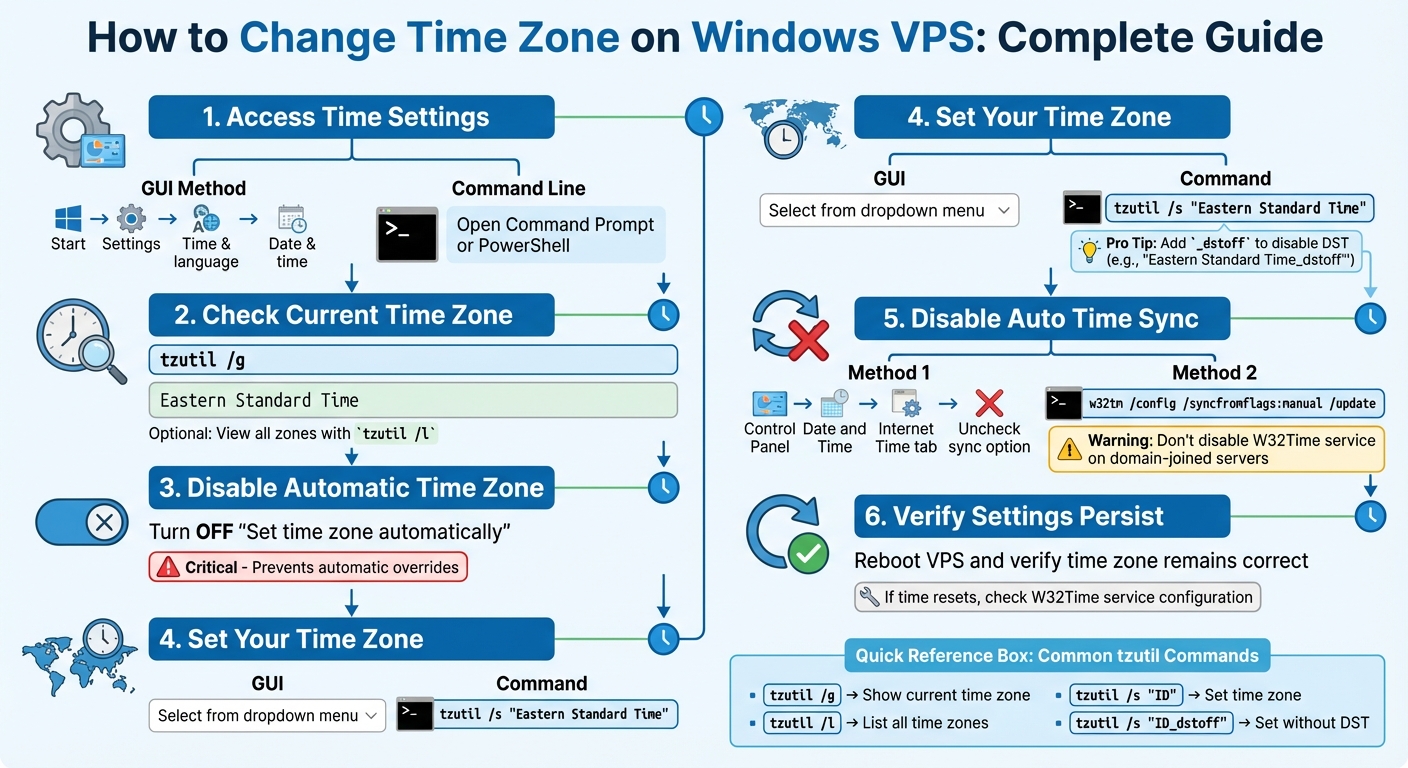
Step-by-Step Guide to Configuring Windows VPS Time Zones for Trading
Getting your time zone settings right on a Windows VPS is crucial, especially when you're using tools like NinjaTrader for automated trading. Accurate settings ensure smooth trade execution and proper data logging. Windows Server 2022 provides several ways to adjust these settings.
Opening Date and Time Settings on Windows Server
To access time zone settings, you have a couple of options:
- Through the Settings app: Click Start, go to Settings > Time & language > Date & time.
- Using the Control Panel: Navigate to Clock and Region, then select Date and Time. This method is handy if you need to disable Internet Time synchronization later.
If you're comfortable with command-line tools, the tzutil utility is a quicker alternative. Open Command Prompt or PowerShell and use tzutil /g to check your current time zone ID. To see all available time zones with their IDs, type tzutil /l. This approach is particularly useful for scripting or making quick adjustments during trading hours.
Once you're in the right place, you can configure the VPS with the correct time zone.
Choosing and Applying the Right Time Zone
Before picking a time zone, make sure to turn off the "Set time zone automatically" option in the Settings app. This prevents Windows from overriding your manual selection based on network location or automatic detection. After toggling this off, select your desired time zone from the dropdown menu, and the changes will apply immediately.
For those who prefer the command line, the process is even faster. Use the command tzutil /s "Eastern Standard Time" to set the VPS to Eastern Time, or replace the ID with your chosen time zone. Remember to enclose the time zone ID in double quotes to avoid errors. If you want to disable daylight saving time (DST), add "_dstoff" to the ID, like this: tzutil /s "Eastern Standard Time_dstoff".
Here's a quick reference for tzutil commands:
| Command | Action | Example |
|---|---|---|
tzutil /g |
Shows the current time zone ID | Returns "Eastern Standard Time" |
tzutil /l |
Lists all valid time zone IDs | Displays a full list with names |
tzutil /s "ID" |
Sets time zone to specified ID | tzutil /s "Central Standard Time" |
tzutil /s "ID_dstoff" |
Sets time zone and disables DST | tzutil /s "Pacific Standard Time_dstoff" |
After setting the time zone, you'll need to disable automatic time synchronization to ensure your changes stick.
Turning Off Automatic Time Synchronization When Needed
Disabling automatic time synchronization is key to preventing unexpected clock adjustments. To do this:
- Open the Control Panel and go to the Date and Time dialog.
- Under the Internet Time tab, uncheck the "Synchronize with an Internet time server" option.
If you prefer using the command line, you can run w32tm /config /syncfromflags:manual /update. This stops the server from syncing with default time sources or the domain hierarchy.
However, avoid completely disabling the Windows Time service (W32Time) on domain-joined servers. Microsoft warns that "Time synchronization is critical for the proper operation of many Windows services and line-of-business applications" [3]. Services like Kerberos authentication and Active Directory replication rely on synchronized clocks to function correctly.
Finally, verify that your settings persist after a reboot. If the time resets, check whether the Windows Time service is disabled or ensure it's configured to use a reliable NTP source to avoid reverting to default settings.
Preventing Time Resets and Sync Problems
Once you've set your time zone, it's crucial to keep it stable to avoid issues like resets during reboots or Windows updates. Building on the earlier manual time configuration steps, here are some methods to help ensure your settings stay intact.
Setting Up Time Sync with Reliable NTP Servers
Using a reliable Network Time Protocol (NTP) server is key to keeping your VPS clock accurate, especially for precise trade execution. Windows' built-in Time service offers an accuracy of ±116 ms, which is suitable for most trading needs. If you require even tighter precision, you can adjust the polling intervals to achieve sub-millisecond accuracy [14].
To manually configure NTP, open Command Prompt as Administrator and enter the following command:
w32tm /config /manualpeerlist:"time.windows.com,0x8" /syncfromflags:manual /reliable:yes /update
You can replace "time.windows.com" with another trusted NTP server. For improved accuracy, modify the MinPollInterval and MaxPollInterval values to 6 in the registry at:
HKEY_LOCAL_MACHINE\SYSTEM\CurrentControlSet\Services\W32Time\Config [12]. This ensures frequent time checks for tighter synchronization.
If you're using a Hyper-V VPS, disable the cloudbase-init service with:
Set-Service -Name cloudbase-init -StartupType Disabled
Also, set the registry value UtilizeSslTimeData to 0 at:
HKEY_LOCAL_MACHINE\SYSTEM\CurrentControlSet\Services\W32Time\Config
This prevents clock resets due to conflicts [16].
For traders needing extreme precision, third-party tools like NetTime offer advanced synchronization algorithms, keeping your clock accurate within a few milliseconds [15]. As Ninja Trading Bot highlights:
"The CME invests significantly to ensure that it accurately records the timing of trades... if your local clock is synchronized with the CME clock, you will know the latency of your Market Data" [15].
This synchronization allows you to calculate market data latency by comparing the CME exchange timestamp with your VPS's arrival time.
Stopping Windows Updates from Changing Time Settings
After setting up NTP, it's important to prevent Windows Updates from undoing your custom configurations. This can be done by locking your time settings through Group Policy. Windows Updates often override time settings unless they are explicitly protected [10].
Make sure the "Set time zone automatically" option stays disabled in the Time & Language settings, as discussed earlier. To lock your settings, use the Local Group Policy Editor:
Navigate to Computer Configuration > Administrative Templates > System > Windows Time Service, and configure your time providers there. Group Policy settings ensure your configurations remain intact, even if updates attempt to change them [10].
To avoid sudden clock adjustments, set phase correction limits. Configure MaxPosPhaseCorrection and MaxNegPhaseCorrection to 3600 (1 hour) in the registry at:
HKEY_LOCAL_MACHINE\SYSTEM\CurrentControlSet\Services\W32Time\Config [13]. This restricts how far the clock can jump, minimizing disruptions to trading algorithms. For systems with poor network connections, Microsoft suggests setting the AnnounceFlag value to 0xA instead of 0x5 to better handle synchronization failures [13].
Keep in mind that Kerberos authentication requires time accuracy within 5 minutes to work properly [7]. Completely disabling time synchronization isn't an option for domain-joined servers. These steps will help maintain your VPS clock's accuracy, which is essential for reliable trade execution with NinjaTrader.
NinjaTrader Time Zone Settings for Accurate Trading
Once your VPS time settings are configured, the next step is aligning NinjaTrader. This platform uses your Windows system clock as a reference but has its own time zone setting that determines how data is displayed on your charts.
Setting the Correct Time Zone in NinjaTrader
By default, NinjaTrader uses the time zone set in the Windows Taskbar [4]. However, you can override this within the platform. Here’s how:
- Open the Control Center in NinjaTrader.
- Navigate to Tools > Settings > General.
- In the Properties section, locate the time zone dropdown menu.
- Select your desired time zone, click OK, and restart NinjaTrader [4].
Keep in mind that changing the time zone in NinjaTrader only impacts the chart's X-axis display - it doesn’t alter the actual trading hours of your data [4]. As NinjaTrader Support explains:
"By default, the Time Zone displayed on your Charts in the NinjaTrader Desktop app will match the time zone selected on your computer in the Windows Taskbar. This setting also affects the Auto Close Position feature when enabled." [4]
After adjusting the time zone, reload historical data to ensure everything aligns correctly. Right-click on the chart background and select Reload all historical data [5]. If issues persist, close NinjaTrader, delete the cache, day, minute, and tick folders in Documents\NinjaTrader 8\db\, and restart the platform [6]. These steps ensure that NinjaTrader aligns with your VPS settings for consistent data across the platform.
Preventing Data Mismatches Between VPS and NinjaTrader
Once NinjaTrader is set up, it’s important to maintain synchronization to avoid data discrepancies. Accurate time settings are essential, as mismatches between your VPS and NinjaTrader can lead to corrupted backtesting results and misaligned charts. Make sure NinjaTrader’s clock mirrors your VPS settings to keep your data consistent [2].
If you change your VPS time zone after downloading historical data, NinjaTrader may still use the old timestamps, causing inconsistencies in your charts and unreliable backtest results [2]. To verify synchronization, open a Time and Sales window and compare the real-time trade timestamps with your VPS clock. Matthew from NinjaTrader Support recommends this approach:
"You can also keep an eye on any discrepancies in real-time by first opening a Time and Sales window and comparing the real-time time stamps to your local PC clock. You will want to compare this down to the second." [1]
If you’re using Interactive Brokers (TWS) as your data provider, ensure its time zone matches both your VPS and NinjaTrader settings. A mismatch here can trigger "invalid date/time" errors in your logs [5]. As NinjaTrader_Oxana notes:
"Most likely this [invalid time-zone error] happens when a different time zone is set for TWS, than your PC or NinjaTrader." [5]
Keeping your VPS, NinjaTrader, and external data providers aligned ensures accurate trading data and smooth execution of automated strategies.
Fixing Recurring Time Zone Problems on TraderVPS
This section dives into resolving persistent time zone mismatches on TraderVPS, building on earlier time synchronization techniques. Even with proper configurations, time zone issues can reappear due to network limitations or conflicting platform settings. Addressing these problems quickly is essential to avoid disruptions in trading activities.
Finding and Fixing Time Zone Mismatch Errors
The first step is pinpointing the source of the mismatch. A common culprit is a blocked UDP port 123, which interferes with time synchronization. Use the command tzutil /g to verify your active time zone and check for inconsistencies [9]. Identifying the root cause is crucial before making any adjustments.
Conflicts can arise between NinjaTrader's internal time settings and your Windows clock, which may lead to inaccurate data displays [4][2]. Even minor clock differences can cause these errors, so it’s important to review both your system clock and NinjaTrader settings carefully. Once the issue is clear, adjust the necessary settings to resolve the mismatch.
To confirm discrepancies in real time, open the Time and Sales window in your trading platform and compare the timestamps with your VPS clock down to the second [1]. If you’re using Interactive Brokers TWS, ensure its time zone aligns with both your VPS and NinjaTrader settings [5].
When to Contact TraderVPS Support
If manual fixes don’t resolve the issue, it’s time to reach out to TraderVPS support. Persistent time resets or permission errors - such as grayed-out "Change date and time" buttons - require professional assistance [11].
When submitting a support ticket, include your VPS IP address and RDP username to help identify your server [11]. Provide specific error messages from your trading platform logs, such as NinjaTrader's "unknown error/warning" related to invalid time-zone formats [5]. Additionally, mention the version of your trading software (e.g., NinjaTrader 8.0.26.1) and any connected data feeds like Kinetick or Interactive Brokers [6][5]. Supplying this detailed information enables the support team to diagnose and fix the issue more efficiently, reducing interruptions to your trading operations.
Conclusion
Managing time zones on a Windows VPS is crucial for ensuring accurate automated trading with NinjaTrader. Unlike platforms like MT4 that rely on your broker's clock, NinjaTrader's charts are entirely dependent on your local VPS clock. As TradingDJ explains, "Unlike MT4, which bases its charts on your broker's clock, charts within NinjaTrader are based on your local PC clock" [2]. Even minor clock drift can lead to inaccuracies in both real-time and historical data, potentially affecting your indicators and automation.
This becomes especially critical for automated features, such as Auto Close Position, which rely on the time zone set in your Windows Taskbar [4]. DayTradeToWin emphasizes, "If your Windows clock is off by only a small amount, NinjaTrader will display information differently. This applies to both real-time and historical data" [1]. These potential discrepancies underline the importance of maintaining consistent time settings across all your trading systems.
To avoid these issues, ensure that time zone settings are uniform across your entire trading setup. This includes your Windows Server configuration, NinjaTrader's internal settings, and any connected platforms like Interactive Brokers TWS. After adjusting time zones, clear NinjaTrader's data cache and reload historical data to prevent mismatches. Regularly use the Time and Sales window to verify accuracy and spot any inconsistencies [1].
TraderVPS offers reliable infrastructure with 24/7 uptime and expert support to keep your trading systems running efficiently. If time zone issues persist, reach out to TraderVPS support for assistance. Accurate time synchronization is essential for smooth trading and avoiding costly errors. Stay proactive with regular checks, and let TraderVPS help ensure uninterrupted trading operations.
FAQs
Should my VPS time zone match the exchange or my local time?
Your VPS's time zone needs to align with the exchange's time zone. This ensures your trading data stays accurate and keeps everything in sync. By doing this, you avoid any hiccups with automated trading systems and maintain smooth operations on your trading platform.
How can I tell if my VPS clock drift is affecting NinjaTrader?
To determine if VPS clock drift is affecting NinjaTrader, compare the timestamps in the Time and Sales window to your local PC clock. Make sure to check down to the second. If you notice any differences, it may signal a synchronization problem, which could affect the accuracy of your trading data. Keeping your system's time properly synchronized is essential for maintaining reliable trading performance.
What’s the safest way to prevent sudden time jumps on Windows Server?
To avoid unexpected time jumps on Windows Server, it's essential to configure and synchronize the system's clock using Network Time Protocol (NTP) or reliable time servers. Start by ensuring the BIOS clock is correctly set - either to local time or UTC, depending on your system's requirements. This minimizes the risk of time drift or abrupt changes. Accurate synchronization is especially important for maintaining steady performance and avoiding disruptions in time-critical applications, such as trading platforms.