Elevating VPS RDP to 60fps from 30fps
Want smoother performance on one of the best VPS providers for futures trading or other high-demand tasks? Here's how to double your RDP frame rate from 30fps to 60fps for a more fluid, responsive experience. By adjusting the DWMFRAMEINTERVAL registry value and enabling GPU acceleration, you can significantly improve visual smoothness, especially for applications like NinjaTrader during fast market activity.
Key Steps:
- Upgrade RDP Frame Rate: Modify the
DWMFRAMEINTERVALregistry value to 15 for 60fps. - Enable GPU Acceleration: Turn on H.264/AVC hardware encoding via Group Policy for faster rendering.
- Optimize Network: Use a wired Ethernet connection or configure 5GHz Wi-Fi for stable performance.
- Adjust RDP Client Settings: Tailor settings for high-speed or limited bandwidth connections to avoid lag.
This setup enhances visuals without reducing actual network latency, creating a near-local experience for traders and other professionals. Follow the detailed guide to achieve smoother performance and better responsiveness.
Step-by-Step Guide to Enable 60fps RDP on VPS for Trading
Increase your Remote Desktop RDP sessions fps to 60!
Prerequisites for 60fps RDP Configuration
Setting up RDP for 60fps is essential for quick market responses, but it demands a solid foundation. Before diving into registry tweaks, make sure your VPS setup meets the necessary technical requirements. Achieving 60fps requires more resources than a standard RDP session, so your hardware, software, and network must all be up to par.
Check Your VPS Plan and Hardware Specs
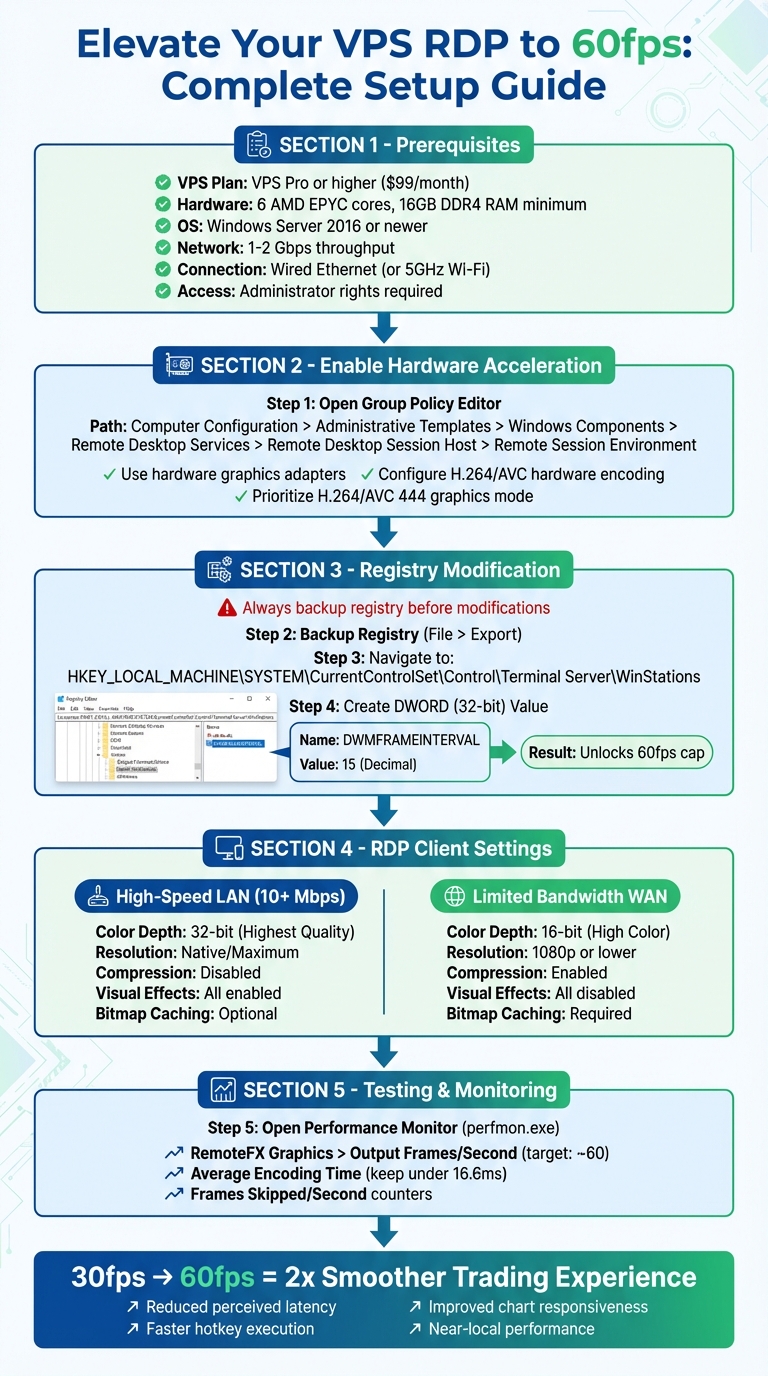
Your VPS should have the power to handle the higher frame rate smoothly, without lag. Plans like VPS Pro from TraderVPS (priced at $99/month) or higher are recommended. These offer 6 AMD EPYC cores and 16GB of DDR4 RAM. For even better results, opt for setups with high-performance CPUs and fast DDR5 memory.
Key hardware considerations include:
- A strong CPU with integrated DirectX acceleration.
- High-speed PCIe Gen 4 NVMe storage to avoid data bottlenecks during heavy tick loads.
- Network throughput of 1–2 Gbps to support the increased data demands.
Once your hardware is ready, ensure your software version and permissions are also in check.
Verify Windows Server Version and Administrator Rights
Your VPS must be running Windows Server 2016 or newer. To confirm, use the winver command. TraderVPS typically provides Windows Server 2022, which is already optimized for trading purposes. You'll also need full Administrator rights to modify the registry. Specifically, you'll be creating the DWMFRAMEINTERVAL value in the HKEY_LOCAL_MACHINE hive to enable 60fps.
Use Wired Ethernet for Low Latency
For the best performance, connect your local computer to your router using an Ethernet cable. Wi-Fi can introduce jitter and interference, which disrupt the smooth delivery of 60fps streams. Remember, your system must process frames roughly every 15 milliseconds to maintain fluid performance. A wired connection minimizes round-trip time and eliminates the sluggishness often felt with wireless RDP sessions.
If Ethernet isn't an option, switch to the 5GHz Wi-Fi band and configure your router's QoS settings to prioritize RDP traffic. This can help reduce latency, though it won't match the reliability of a wired setup.
How to Enable 60fps RDP on Your VPS
Once you've confirmed your hardware and network are ready, follow these steps to enhance your RDP experience. To achieve 60fps, you’ll need to enable hardware acceleration through Group Policy, tweak the registry, and adjust the DWM frame interval. Start by enabling hardware encoding and GPU acceleration.
Turn On H.264/AVC Hardware Encoding and GPU Acceleration
Open the Group Policy Editor and go to:
Computer Configuration > Administrative Templates > Windows Components > Remote Desktop Services > Remote Desktop Session Host > Remote Session Environment.
Enable these three policies:
- "Use hardware graphics adapters for all Remote Desktop Services sessions": This ensures your VPS uses its GPU for rendering instead of slower software methods.
- "Configure H.264/AVC hardware encoding for Remote Desktop connections": Shifts encoding tasks from the CPU to the GPU for better performance.
- "Prioritize H.264/AVC 444 graphics mode for Remote Desktop Connections": Improves text clarity and reduces visual distortions.
"By enabling the group policy 'Prioritize H.264/AVC 444 graphics mode for Remote Desktop Connections'... I was able to get a glorious 60fps, almost double what I was getting before." – Ed Andersen, Software Engineer
To confirm these settings are active, check the Windows Event Viewer. Look for Event ID 170 in the RemoteDesktopServices-RdpCoreTS log, which indicates the AVC hardware encoder is enabled.
Apply Registry Changes to Unlock 60fps
Before making changes, back up your registry. Open Registry Editor (regedit) as an Administrator, go to HKEY_LOCAL_MACHINE, and select File > Export to save a backup.
Now, navigate to:
HKEY_LOCAL_MACHINE\SYSTEM\CurrentControlSet\Control\Terminal Server\WinStations
In the right pane, right-click and select New > DWORD (32-bit) Value. Name it DWMFRAMEINTERVAL, then double-click it. Choose Decimal as the base and enter 15. This lifts the RDP frame rate limit to 60fps.
Alternatively, you can use the Command Prompt. Run the following command as Administrator:
reg.exe add "HKLM\SYSTEM\CurrentControlSet\Control\Terminal Server\WinStations" /v DWMFRAMEINTERVAL /t REG_DWORD /d 15 /f
"Serious problems might occur if you modify the registry incorrectly. Therefore, make sure that you follow these steps carefully. For protection, back up the registry before you modify it." – Microsoft
Set DWM Frame Interval for Stable 60fps
The DWMFRAMEINTERVAL registry value determines the maximum frame rate RDP can deliver. Setting this value to 15 targets 60fps. However, it’s important to note that this is a cap, not a guarantee. The actual frame rate will depend on your system’s resources and the demands of your applications.
"The registry entry... sets the maximum frame rate limit that the remote display protocol can deliver to the remote session client to 60 FPS. This setting does not set the actual frame rate... The actual frame rate in the remote session depends on other factors such as application and computer hardware resources." – Microsoft Support
Restart your VPS to apply these changes. With hardware acceleration enabled and the frame rate cap lifted, you’ll be ready to enjoy a smoother 60fps experience - perfect for demanding tasks like trading or remote design work.
Configure RDP Client Settings for Maximum Performance
To fully benefit from your 60fps setup, it's important to fine-tune your RDP client settings. The optimal configuration depends on whether you're working with a high-speed local network or a slower internet connection. This ensures that the performance improvements you've made to your VPS carry over to your trading environment.
Settings for High-Speed LAN Connections
When connected to your VPS via a fast network with at least 10 Mbps of bandwidth, focus on maximizing quality. Open Remote Desktop Connection, click Show Options, and navigate to the Display tab. Set the color depth to Highest Quality (32-bit) to ensure your NinjaTrader charts display sharp and accurate colors. Use your native screen resolution or the maximum supported by your VPS for the best visual experience on reliable Windows VPS desktops.
Next, go to the Experience tab and select LAN (10 Mbps or higher) from the dropdown menu. This disables unnecessary compression, allowing for smoother visuals. Enable all visual features, including Desktop background, Font smoothing, Desktop composition, and Window contents while dragging. With sufficient bandwidth, these settings won’t impact performance.
In the Local Resources tab, you can enable audio and printer redirection if needed. These features won’t strain a high-speed connection and can enhance your overall user experience.
Settings for Limited Bandwidth WAN Connections
For slower internet connections, you'll need to adjust settings to prioritize performance over visual quality. Start by reducing the color depth to High Color (16-bit) in the Display tab. If you notice lag, consider lowering the resolution to 1920×1080 or even 1280×720. A lower resolution running at 60fps is far more effective for trading than a high resolution that stutters.
In the Experience tab, enable RDP compression and turn off nonessential visual effects. Ensure Persistent bitmap caching is activated - this saves frequently used images locally, reducing the need to retransmit data. To conserve bandwidth, disable audio and printer redirection in the Local Resources tab. These adjustments are critical for smooth performance during fast-paced market activity.
| Setting | High-Speed LAN | Limited Bandwidth WAN |
|---|---|---|
| Color Depth | 32-bit (Highest Quality) | 16-bit (High Color) |
| Resolution | Native/Maximum | 1080p or lower |
| Compression | Disabled | Enabled |
| Visual Effects | All enabled | All disabled |
| Bitmap Caching | Optional | Required |
| Audio/Printer Redirection | As needed | Disabled |
Test and Monitor Your 60fps Configuration
Once you've made the necessary changes, it's time to confirm that your VPS is delivering 60fps. The best tool for this is Windows Performance Monitor (PerfMon). To access it, press Win + R, type perfmon.exe, and hit Enter. Before diving in, use the Command Prompt to run qwinsta and identify your RDP session (e.g., "rdp-tcp 37") [9].
In PerfMon, click the green plus icon to add counters. Under the RemoteFX Graphics section, locate and select your session instance. Add the Output Frames/Second counter to see the actual frame rate being delivered to your client. If everything is set up correctly, this value should hover around 60 during active trading on NinjaTrader [9]. For a complete picture, also add the Input Frames/Second counter. If Output is noticeably lower than Input, frames are being dropped somewhere in the process [9].
To troubleshoot further, include the three Frames Skipped/Second counters: Insufficient Server Resources, Insufficient Network Resources, and Insufficient Client Resources. These counters help pinpoint where frames are being lost. Additionally, ensure the Average Encoding Time stays under 16.6 milliseconds to maintain 60fps. Microsoft highlights that factors like application load and hardware capabilities can affect frame rates [5], so it's crucial to monitor these metrics during live trading sessions. If issues arise, check your system resources and network performance to identify any bottlenecks.
Check Frame Rates and Latency
Beyond PerfMon, Task Manager (Ctrl + Shift + Esc) is another handy tool. Use it to monitor CPU and memory usage for the NinjaTrader process [7]. If CPU usage exceeds 70% or memory usage climbs above 80%, frame drops could occur [7]. For network health, open PowerShell and run Get-Counter '\TCPv4\Segments Retransmitted/sec' to detect packet loss. Even a small packet loss of 1–2% can disrupt the 60fps experience [8].
Interactive latency also plays a big role. Latency above 120 milliseconds can start to degrade performance, and anything over 180 milliseconds becomes critical [8]. To monitor latency, check the Event Viewer for RDP session events, specifically Event IDs 4778 (reconnects) and 4779 (disconnects) [8]. If you notice frequent disconnects or stuttering during fast market movements, your network connection might be the limiting factor instead of your VPS. Addressing these metrics is key to ensuring smooth performance.
Fix Common Performance Problems
To optimize your trading experience, fine-tune your server and network settings. If PerfMon shows low Output FPS despite registry tweaks, start by checking your VPS power plan. Switching to High Performance mode can prevent CPU throttling during active sessions [2][3]. Also, confirm your virtual memory is configured correctly - set a fixed-size paging file at 1 to 1.5 times your total RAM to minimize disk fragmentation [3]. For example, with 8 GB of RAM, set both the initial and maximum size to 12,288 MB (12 GB).
Network stability is just as critical. Use a wired Ethernet connection whenever possible; if not, opt for 5GHz Wi-Fi [2][3]. Ensure both TCP and UDP protocols are enabled for RDP since relying only on TCP can cause unnecessary lag [6]. If performance remains choppy, consider disabling real-time antivirus scanning for RDP-related processes, as aggressive scans can lead to stuttering [2]. These adjustments are essential for maintaining NinjaTrader's responsiveness during real-time analysis.
| Performance Issue | Most Likely Cause | Recommended Fix |
|---|---|---|
| Low Output FPS | Server CPU/GPU saturation | Upgrade resources or lower resolution |
| High Average Encoding Time | CPU/GPU overloading | Enable H.264 hardware encoding; reduce effects |
| Frequent Frame Skips (Network) | Bandwidth congestion or packet loss | Use wired Ethernet; check for ISP throttling |
| Frequent Frame Skips (Client) | Client device too slow | Update graphics drivers; close background apps |
| Choppy Video During Trading | Packet loss or disabled GPU encoding | Verify H.264/AVC is enabled; test network with PowerShell |
Conclusion
Boosting your VPS RDP from 30fps to 60fps transforms how NinjaTrader responds to your inputs. By tweaking the DWMFRAMEINTERVAL registry value to 15, enabling H.264/AVC hardware encoding, and fine-tuning your RDP client settings, you effectively double the frame rate. This improvement makes your trading experience feel as smooth as working on a local machine, especially when tracking fast-moving markets.
Higher frame rates don't just improve visuals - they also cut down on perceived latency. This means quicker hotkey executions and more immediate DOM entries, giving futures scalpers an edge when chasing micro price movements. Pair this with TraderVPS's sub‑0.52ms latency to the CME Group via direct fiber-optic cross‑connect [4], and you're set up to react faster and execute trades with greater precision. As TradingVPS puts it:
"When every tick counts, a VPS optimized for futures trading can mean the difference between slippage and precision" [1].
Careful configuration - from hardware checks to performance tuning - delivers massive benefits. Whether you're running automated strategies or actively scalping, upgrading to 60fps ensures your trading environment stays fluid, even during high-volume market activity. Make the upgrade today to achieve the precision and near-local performance that professional trading demands.
FAQs
Will 60fps RDP reduce my trading latency?
Increasing the RDP frame rate to 60fps can make visuals appear smoother and improve responsiveness during tasks like trading. This enhancement can contribute to a more seamless experience. However, it’s important to note that this change doesn’t directly reduce trading latency. Latency is mainly determined by factors such as network speed, connection quality, and how efficiently the server processes data. While smoother visuals may enhance the overall trading workflow, they don’t address the underlying causes of latency.
Do I need a GPU to get 60fps over RDP?
You don’t absolutely need a GPU to hit 60fps over RDP. That said, using a GPU with DirectX 11 or higher support can boost graphics performance. It allows for GPU acceleration, which can help deliver better frame rates and create a smoother overall experience.
How can I verify I’m actually getting 60fps?
To see if your RDP session is running at 60fps, start by opening the Registry Editor with administrator privileges. Then, go to:
HKEY_LOCAL_MACHINE\SYSTEM\CurrentControlSet\Control\Terminal Server\WinStations.
Here, create a new DWORD entry named DWMFRAMEINTERVAL and set its value to 15 in decimal. Once you've done this, reboot your system to apply the changes.
Additionally, you can tweak Group Policy settings to enable features like TCP/UDP protocols and hardware graphics acceleration for better performance. To verify the frame rate during your session, use performance monitoring tools that provide real-time data.