VPS Password Reset: Windows Step-by-Step
Resetting your Windows VPS password is critical to securing your trading environment and avoiding potential risks like data loss or server resets. This guide simplifies the process, helping you protect sensitive data and ensure smooth operations for platforms like NinjaTrader. Here's what you'll learn:
- Why changing the default VPS password is crucial: Default passwords are vulnerable and must be updated immediately.
- How to reset your password: Use the TraderVPS control panel and VNC console to access your server and set a new, secure password.
- Steps to back up trading data: Safeguard configurations, broker settings, and trade copier details before making changes.
- Troubleshooting common issues: Fix VNC connection problems, ensure password updates take effect, and reconnect NinjaTrader.
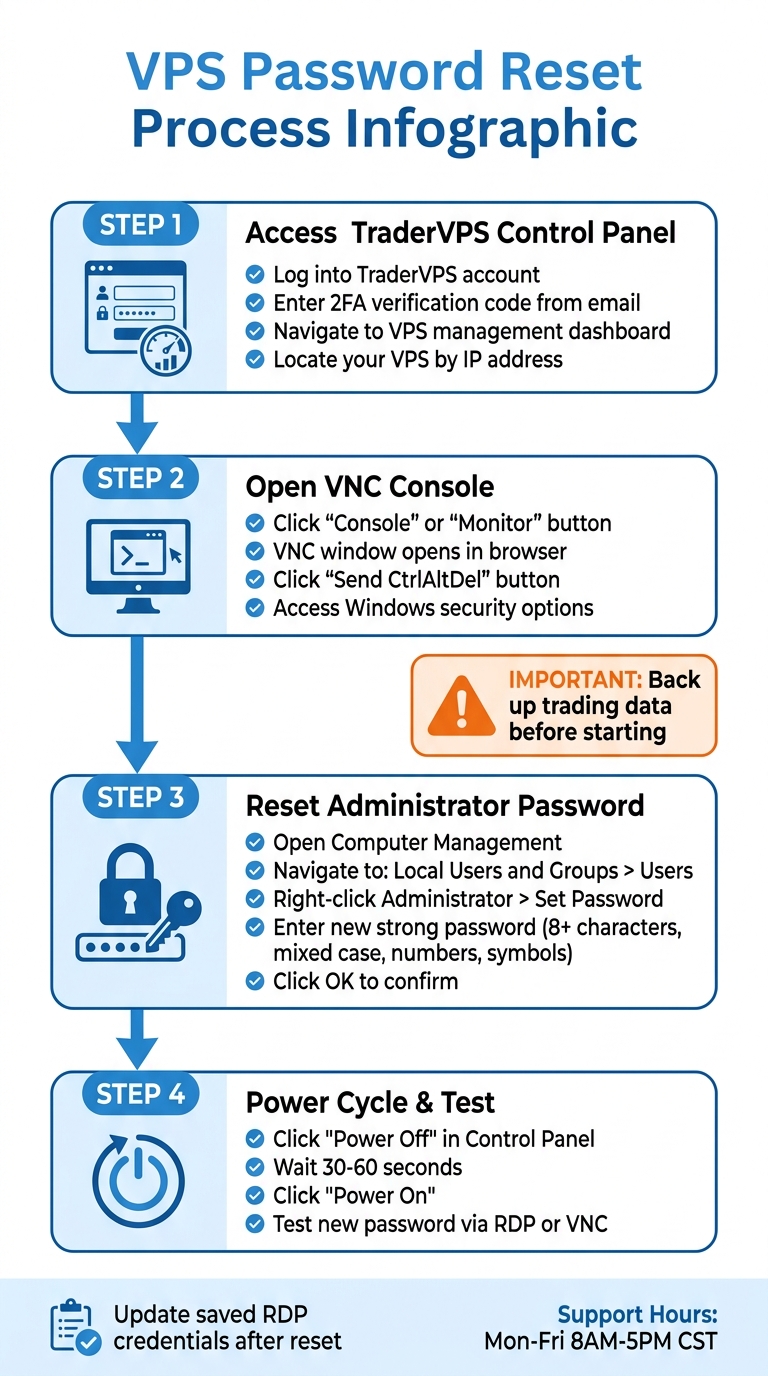
How to Reset Windows VPS Password: 4-Step Process
What You Need Before Starting
TraderVPS Control Panel Access
To get started, you'll need your TraderVPS account details to log into the main dashboard. If your account has two-factor authentication (2FA) enabled, ensure you have access to your registered email for any one-time security codes that might be required during login.
Locate the "Connection Details" email you received after purchasing your VPS. This email contains critical information, including your server's IP address, the Administrator username, and the auto-generated password. Additionally, identify the specific VPS instance you're managing, which is typically listed by its IP address in the dashboard.
It's also a good idea to get comfortable with the VNC console, as it can provide uninterrupted access if standard connection methods fail.
Understanding the VNC Console
The VNC console acts as a safety net when Remote Desktop Protocol (RDP) isn't accessible. It allows you to view and control your Windows desktop directly through your web browser, bypassing the need for a standard RDP connection. To access it, look for the "Monitor" or "Console" button in your control panel. The VNC window includes a "Send CtrlAltDel" feature, which lets you bring up the Windows login screen when needed.
Backing Up Your Trading Data
Before making any changes to your system, it's crucial to back up your trading data. System resets or modifications can lead to data loss, and for traders managing funded accounts, the financial consequences of a VPS failure can be severe. A backup ensures your trading environment is protected during the reset process.
Here’s what you should do before proceeding:
- Export your NinjaTrader configurations.
- Save your license key and broker settings (for platforms like Rithmic or Tradovate).
- Record trade copier details, such as those for Copilink or CrossTrade.
- Use the control panel's backup feature to create a full system snapshot.
How to Access the TraderVPS Control Panel
Logging Into Your TraderVPS Account
Start by opening your web browser and heading to the TraderVPS login portal. Enter the email address and password you used during signup, then hit the login button. Right after, check your registered email for a verification code. This extra step ensures your trading setup stays secure from unauthorized access.
Take the verification code from your email and input it on the login screen. Once verified, you'll be directed to the main Dashboard, where all your active services are displayed. If you've just purchased a VPS, you might need to wait a few minutes for the system to complete provisioning before your server details show up.
Once logged in and verified, you're ready to explore the VPS management tools.
Finding the VPS Management Tools
On the Dashboard, find your VPS by its IP address and click the "Go to Server" or "Manage" button. This will bring you to the VPS Control Panel, which serves as your command center for managing the server.
Within the Control Panel, scroll to the "Server Credentials" or "Connection Details" section. Here, you'll see the server's IP address, the default username (usually "Administrator"), and the auto-generated password. In addition, you'll find the "Console" or "Monitor" button, which lets you open the VNC console for direct access to your Windows desktop environment.
How to Reset Your Windows VPS Password
Connecting via the VNC Console
To get started, open the "Console" or "Monitor" option in your VPS Control Panel. This will launch the VNC console window, a web-based tool that provides a direct graphical view of your Windows desktop without needing Remote Desktop Protocol (RDP). This method is especially handy if RDP access is blocked [5].
Once the VNC window opens, you'll see the Windows Server login screen. Since standard keyboard shortcuts are disabled in this interface, use the "Send CtrlAltDel" button located at the top right of the VNC console to bring up the Windows security options [1]. Afterward, you'll be ready to reset your administrator password.
Resetting the Password in Windows Server
Now that you're connected, here’s how to update your password. Access "Computer Management" by navigating to the Start menu and selecting "Windows Administrative Tools" (or "Windows Tools" on Windows Server 2025). From there, expand "Local Users and Groups" in the left sidebar and click on "Users" [6].
Locate the "Administrator" account, right-click it, and choose "Set Password...". A warning message will appear - click "Proceed" to continue. Enter your new password, confirm it, and click "OK". Once completed, a confirmation message will appear stating, "The password has been set" [6]. Be sure to create a strong password that differs from any others you’ve used, especially for trading accounts.
Applying Changes and Restarting Your VPS
To finalize the process, return to your VPS Control Panel and perform a power cycle. Click "Power Off", wait 30–60 seconds, and then click "Power On" [5]. This step ensures the new password is fully integrated into the system. It’s a critical step to maintain the proper functioning of your trading setup.
Before reconnecting, check the server status indicator in your Control Panel. Once it turns green, your VPS is ready. Test the new password by logging in through the VNC console or establishing a fresh RDP connection [5].
Fixing Common Password Reset Problems
Resolving VNC Connection Problems
If your VNC console window remains black or fails to load, the first thing to check is your VPS power status in the Control Panel. The VNC console won’t connect if your VPS is powered off or stuck in a transitional state [2]. To fix this, click the "Power On" button and wait until the status indicator updates to "Running" before trying again.
Encountering a "Too many security failures" error? This means the login attempt limit has been exceeded. You’ll need to wait 5–10 minutes for the lockout period to end, or you can perform a Hard Reboot from the Control Panel to reset the connection counter [7]. If the VNC window loads but remains unresponsive, try logging out of your TraderVPS account and logging back in to refresh your session token.
It’s also a good idea to check your local internet connection and firewall settings. Temporarily disable any VPNs or security software to rule out interference [4][3]. Since the VNC console operates at a BIOS level, it can still work when Windows networking is down, which makes local firewall interference a likely issue.
If you’ve resolved these VNC issues but your password still won’t update, move on to the next steps.
What to Do When the Password Doesn't Update
Once you’ve addressed any VNC connection problems, it’s time to troubleshoot password-specific issues. One common reason a new password fails is skipping a full power cycle. Make sure to fully reboot your VPS, following the earlier power cycle instructions, to ensure the password changes take effect.
Windows Server has strict password requirements. If your new password doesn’t meet these standards - such as being too short or missing uppercase letters, numbers, or symbols - it will be rejected. Make sure your password is at least 8 characters long and includes a mix of uppercase letters, lowercase letters, numbers, and special characters.
If the Remote Desktop Protocol (RDP) continues to reject your password even after a proper reboot, try connecting via the VNC console instead. This approach bypasses network restrictions and may reveal specific Windows error messages, such as "Password must be changed", which can help pinpoint the issue. Additionally, confirm that your account is still part of the "Administrators" group by navigating to Computer Management > Local Users and Groups.
Getting Help from TraderVPS Support
Before reaching out to support, double-check your IP address, username, and current password in the Control Panel [4]. If you’ve exhausted all troubleshooting steps and still can’t access your VPS, contact TraderVPS support for assistance.
Standard support hours are Monday through Friday, 8:00 AM to 5:00 PM CST [8]. Be aware that response times may be slower on weekends due to limited staffing.
"Please know that our normal hours of support are Monday - Friday from 8 am - 5 pm CST. Outside of those hours we are working with a dramatically smaller team so it can take a little longer to get a response."
- NinjaTrader Customer Service [8]
If you receive an automated reply that doesn’t resolve your issue, respond immediately to request a human agent and ensure you receive a formal ticket number [8].
Testing Your New Password and Resuming Trading
Confirming the New Password Works
To get started, open Remote Desktop Connection, enter your VPS IP address, and type in the Administrator username. When prompted, input the new password. Be sure to update any saved login credentials to reflect the change.
If you see an "unknown certificate" warning during your first login with the new password, don't worry - this is completely normal. Simply click "Yes" to proceed and confirm the connection to your server. A successful login will display a Windows desktop. If the RDP client tries to use your old password automatically, click "Show Options", ensure the username is correct, and reconnect to prompt a new password entry.
Once you've confirmed the new password is working, the next step is to check NinjaTrader's connection status.
Reconnecting NinjaTrader After Password Reset

After logging in through RDP, open NinjaTrader 8 to confirm it reconnects to your broker or data feed. Platforms like Rithmic, Tradovate, or Apex should automatically re-establish the connection. To verify, check NinjaTrader's connection indicator for live market data.
If the platform doesn't connect, go to Documents > NinjaTrader 8 and review the "log" and "trace" folders. Look for error messages such as "Authentication failed" or "WebSocket closed." These could indicate that your broker login details need to be re-entered, as password changes might affect stored encrypted data.
If issues persist, open Command Prompt on your VPS and run the command ipconfig /flushdns. This clears cached network paths that could be interfering with NinjaTrader's ability to connect.
Summary and Best Practices
Main Steps to Remember
Start by accessing the TraderVPS Control Panel. Use the VNC console if necessary, reset your Windows Server password, restart your VPS, and make sure to update your saved RDP credentials as soon as you log in.
Once the reset is complete, focus on long-term security by following these important practices.
Keeping Your VPS Secure Long-Term
To keep your trading environment safe, make it a habit to update your VPS password regularly. The default password provided in your TraderVPS dashboard is only intended for the initial setup. During your first login, change it to ensure full ownership and control of your server [3]. This reduces the risk of unauthorized access if your credentials are ever exposed.
After changing your password, double-check that Remote Desktop remains enabled and that your firewall settings still allow RDP access through port 3389 [2]. If you use the Microsoft Remote Desktop app on mobile devices, update your credentials there as well. Only use the "Remember Me" feature on secure, personal devices - avoid it entirely on shared or public computers [3]. Following these straightforward steps will help safeguard your automated trading systems and ensure NinjaTrader continues to run smoothly.
How to Reset a Password in Windows Server (2016, 2019, 2022)
FAQs
Will resetting my VPS password erase NinjaTrader data?
No, resetting your VPS password will not delete any NinjaTrader data. Changing your password simply updates your login credentials and does not interfere with the application's stored data or configuration files.
How can I regain access if I’m locked out of RDP?
If you're locked out of your VPS through RDP, you can reset your password by booting into rescue mode or using a Windows ISO file. Once there, access the command prompt through the repair options. Use tools like chntpw to reset the password, then reboot your VPS. Be sure to follow the specific instructions in your provider's control panel to complete the process and regain access.
What’s a strong Windows Server password to use?
A strong Windows Server password should be at least 12 characters long, though aiming for 14 or more is even better. It should combine uppercase and lowercase letters, numbers, and symbols to improve security. Stay away from dictionary words or easily guessed details like names or dates to keep your system safer.