DupliTrade Setup Handbook: MT4, MT5, cTrader Configuration in 2026
DupliTrade allows you to automatically copy trades from experienced traders using platforms like MT4, MT5, and cTrader. To ensure uninterrupted performance, it’s recommended to use a VPS (Virtual Private Server) like TraderVPS, which keeps your trading platforms online 24/5. Here’s what you need to know:
- Supported Platforms: MT4, MT5, cTrader.
- Requirements: A broker account with AvaTrade, Pepperstone, IC Markets, or Fusion Markets, a $5,000 minimum deposit, and a VPS subscription.
- Why Use a VPS? It ensures low latency (0–5 ms), eliminates downtime, and boosts execution speed.
- Setup Overview: Install your trading platform on a VPS, configure settings for automated trading, and link it to DupliTrade for trade copying.
Each platform has specific setup instructions, including performance tweaks to reduce latency, optimize CPU usage, and ensure smooth operation. Whether you’re using MT4, MT5, or cTrader, following these steps ensures reliable trade execution and minimal delays.
Setting Up DupliTrade with MT4
Installing MT4 on TraderVPS
To get started, access your TraderVPS using Remote Desktop Connection on Windows or Microsoft Remote Desktop on macOS or Android. You'll need the IP address and login details provided in your TraderVPS welcome email. Once connected, open a web browser, go to your broker's website (like AvaTrade, Pepperstone, or IC Markets), and download their MT4 installation file.
Run the downloaded setup file and follow the prompts. The installation typically takes 2–3 minutes. When MT4 launches for the first time, you'll see a login window. Enter your account number, password, and select the correct trading server (e.g., "Pepperstone-Live 2" or "ICMarkets-Live03"). Be precise here - choosing the wrong server will block your account from connecting.
After logging in, go to Tools > Options > Expert Advisors and enable "Allow Automated Trading" and "Allow DLL imports". These settings are essential for DupliTrade to execute trades on your account. Without them, signals will be received but won't trigger any actions.
To make MT4 restart automatically after a VPS reboot, press Windows + R, type shell:startup, and hit Enter. Create a shortcut to your MT4 terminal executable in this folder. If you're managing multiple DupliTrade accounts, add /portable to the shortcut's target path. This keeps all Expert Advisor data and profiles neatly organized within the installation folder. Once MT4 is installed and configured, you're ready to link it with DupliTrade.
Connecting DupliTrade to MT4
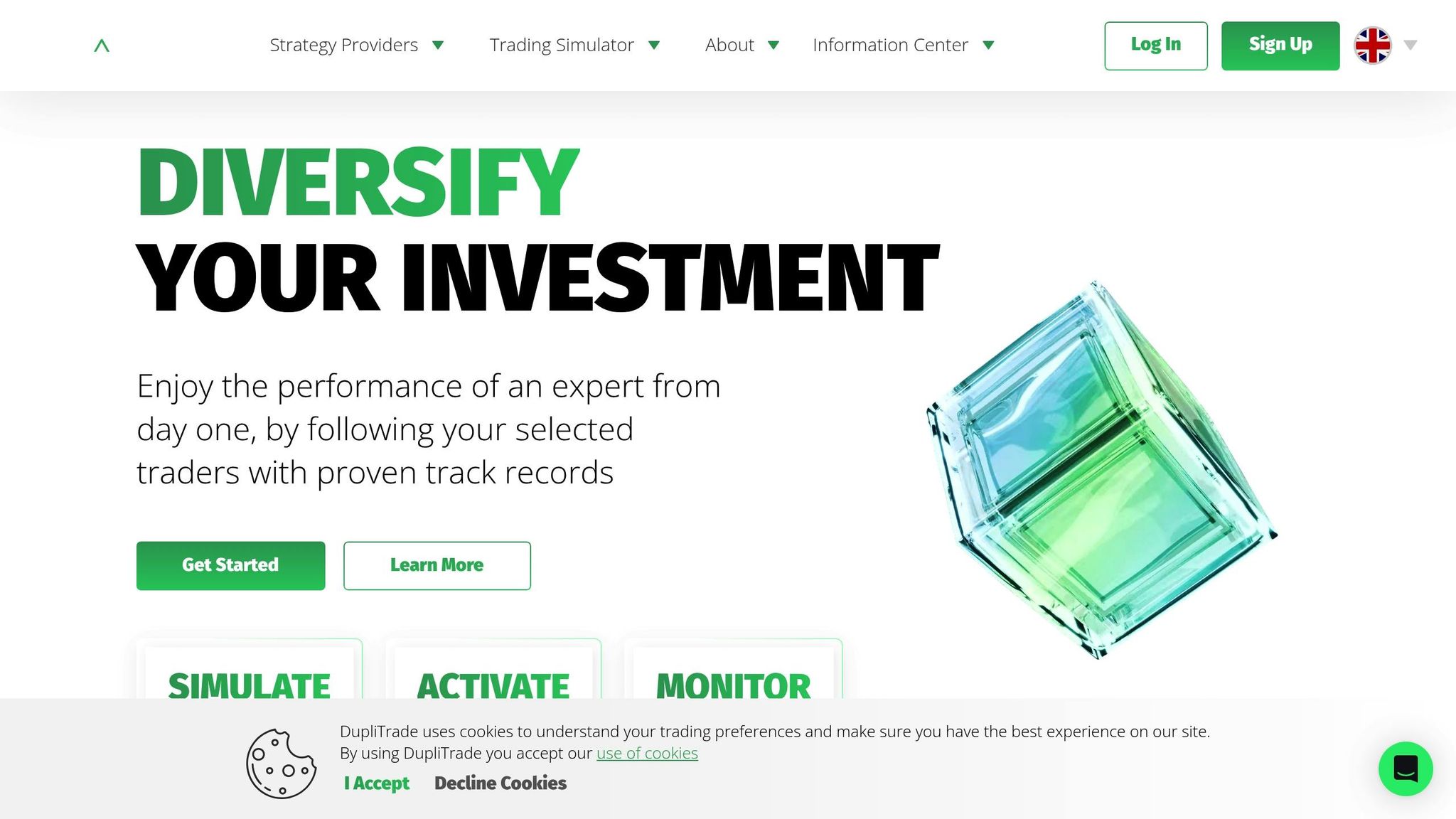
Log into your DupliTrade dashboard via your browser. Select "Link Broker Account", choose your broker from the list, and enter your MT4 account number and password (found in your broker confirmation email). DupliTrade will verify the connection in about 30–60 seconds.
Next, head to the "Strategy Providers" section. Here, you'll find detailed performance metrics for each provider, such as net profit, drawdown, and trade frequency. For instance, the "Alpine" strategy executes over 180 trades monthly, focusing on EUR pairs, while "Roku" averages 30–60 trades on major indices and gold. Choose providers that match your trading goals and risk tolerance.
In the "Duplication Setup" menu, customize how trades are mirrored to your account. You can adjust trade size (from 25% to 100% of the provider's activity) and set maximum drawdown limits. DupliTrade also includes a simulator tool to back-test strategy combinations before committing funds. This feature helps you fine-tune your allocation settings. There are no setup or monthly fees for DupliTrade; costs are covered through spread income or advisory fees paid by your broker.
MT4 Performance Settings on TraderVPS
MT4, as a 32-bit application, works best when assigned to a single CPU core. Open Task Manager, right-click the MT4 process, select "Set Affinity", and assign it to one CPU core (usually CPU0). This setup ensures smooth trade execution, especially during high-volatility periods.
To reduce resource usage, tweak chart settings. Go to Tools > Options > Charts and set "Max bars in history" and "Max bars in charts" to 1,000. This adjustment significantly lowers RAM usage without affecting trade functionality. Disable "Show trade levels" and "Enable news" in the Server tab to cut down on unnecessary CPU tasks.
For optimal performance, set your Windows Power Plan to "High Performance" by typing powercfg.cpl in the Run dialog. This ensures your CPU runs at full speed during market activity. Add your MT4 installation folder to Windows Defender's exclusion list to prevent real-time scanning from slowing down order execution. Thanks to TraderVPS's NVMe storage, chart updates and log writes are handled faster than standard HDDs, reducing lag during rapid price movements, especially when using multiple Expert Advisors.
| Setting | Recommended Configuration | Impact |
|---|---|---|
| Power Plan | High Performance | Maximizes CPU clock speed |
| Processor Scheduling | Background Services | Prioritizes MT4 backend tasks |
| Visual Effects | Adjust for best performance | Reduces GPU/CPU load |
| Max Bars in Chart | 1,000 | Significantly lowers RAM usage |
Setting Up DupliTrade with MT5
Installing MT5 on TraderVPS
The process for setting up MT5 on TraderVPS closely mirrors the steps for MT4, with some platform-specific tweaks. Start by connecting to your TraderVPS through Remote Desktop Connection. Your IP address and login details can be found in your welcome email. Once you're connected, open a browser and head to your broker's client portal to download the broker-branded MT5 installer. This installer comes pre-configured with server addresses and trading symbols.
After downloading, right-click the installer and select "Run as Administrator." The installation usually takes about 2–3 minutes. Once installed, launch MT5 in portable mode by creating a shortcut with the /portable flag. For example, your shortcut might look like this: "C:\Program Files\MetaTrader 5\terminal64.exe" /portable. This keeps all data stored in one location [1][3].
When MT5 opens, log in by entering your account number, password, and selecting the appropriate server (e.g., "Forex.com-Live" or "XM-Real 3"). Then, go to Tools > Options > Expert Advisors and enable both "Allow algorithmic trading" and "Allow DLL imports" to ensure DupliTrade signals execute properly [1][5]. To make MT5 restart automatically after a VPS reboot, press Windows + R, type shell:startup, and create a shortcut to your MT5 executable in the startup folder [1][3].
Once MT5 is configured, you're ready to link it to DupliTrade.
Connecting DupliTrade to MT5
Log in to your DupliTrade dashboard via a browser and select "Link Broker Account." From there, choose your broker from the list and enter your MT5 account number, password, and any required symbol suffix. Ensure the credentials are accurate, as incorrect details can delay the connection. DupliTrade will verify the link within 30–60 seconds.
If your broker uses symbol suffixes (e.g., "EURUSD.r" instead of "EURUSD"), make sure to input the suffix in the "Suffix of the Receiver Account" field in DupliTrade's settings [7][8]. For cases where the signal provider's symbols differ from your broker's (like "XAUUSD" versus "GOLD"), configure custom symbol mapping in the copier settings using this format:
MasterSymbol=ClientSymbol [6][7].
With your MT5 account linked, you can now fine-tune performance settings for optimal execution.
MT5 Performance Settings on TraderVPS
To get the best performance out of MT5 on TraderVPS, take advantage of its 64-bit framework, which offers enhanced speed and efficiency compared to MT4. Start by opening Task Manager, locating the MT5 process under the Details tab, right-clicking it, and setting its priority to High. This ensures MT5 gets the CPU resources it needs over other background tasks [1].
Next, adjust the Windows Power Plan to "High Performance" by typing powercfg.cpl into the Run dialog. This prevents CPU throttling [1]. To minimize memory usage, go to Tools > Options > Charts in MT5 and set both "Max bars in history" and "Max bars in charts" to 1,000. This reduces RAM use without affecting trade execution [1][4]. Additionally, disable "Enable news" under Tools > Options > Server to cut down on bandwidth and CPU load [1][9]. For smoother operation, add your MT5 installation folder to Windows Defender's exclusion list to avoid delays caused by real-time scanning.
Synchronizing time is another key step. Set the Windows Time service (w32time) to Automatic and sync with an NTP server using the command: w32tm /resync /force. This keeps your system aligned with atomic time sources, preventing signal delays [1]. With TraderVPS's NVMe storage and DDoS protection, you can count on fast chart updates and uninterrupted trading. If you're running multiple MT5 instances, stability is typically maintained with 24–28 terminals per session [9].
| Feature | Recommended Setting | Purpose |
|---|---|---|
| Max Bars in Chart | 1,000 or less | Reduces RAM and CPU usage |
| Processor Scheduling | Background Services | Prioritizes MT5 execution |
| Windows Power Plan | High Performance | Prevents CPU throttling |
| MT5 Process Priority | High | Ensures resource availability |
| News Feed | Disabled | Reduces bandwidth and CPU load |
Setting Up DupliTrade with cTrader
Installing cTrader on TraderVPS
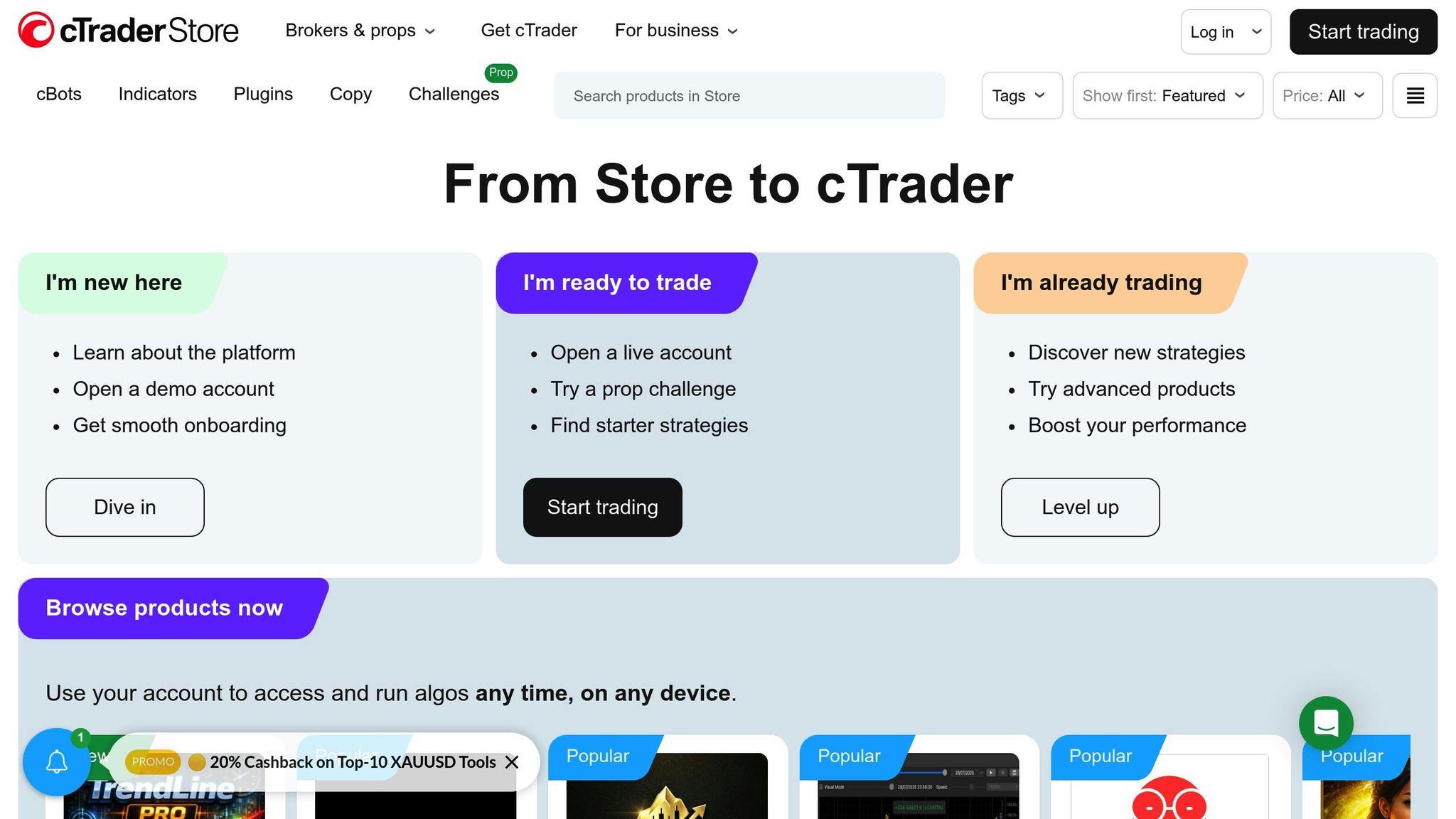
Just like with MT4 and MT5, installing cTrader requires a broker-specific version since brokers customize the platform with their price feeds and order execution protocols [11]. To get started, connect to your TraderVPS using Remote Desktop Connection. Use the login credentials from your welcome email. Once connected, open a browser and head to your broker's client portal to download the cTrader Desktop installer. This desktop version gives you access to all the platform's algorithmic and copy-trading tools, which aren't fully available on the web or mobile versions [10].
Run the installer and follow the on-screen instructions. When prompted, log in using your cTrader ID (cTID) to access all your linked trading accounts. If you don’t already have a cTID, you can create one during this process [12].
For convenience, create a startup shortcut for cTrader by pressing Windows+R, typing shell:startup, and adding the cTrader executable file. If you're managing multiple strategies, activate "Multiple Profiles" mode, which allows each instance of cTrader to have its own token and configuration [13].
Connecting DupliTrade to cTrader
To link your cTrader account with DupliTrade, head to the DupliTrade dashboard in your browser. Click "Add Account", then select "cTrader" as your platform [16]. Enter your broker's name, account login details, and main trader password (note that investor passwords only allow monitoring) [16][17]. After that, choose the appropriate broker server from the dropdown menu to finalize the connection [16].
"The general logic of the copying mechanism in cTrader Copy is that an investor can allocate their funds to copy a specific trading strategy under specific conditions." – cTrader Help [12]
Before enabling any strategy, adjust your Risk Factor in the copier settings. This determines how trade volumes are scaled from the master account to yours, typically using an equity-to-equity ratio: (Investor's Equity / Provider's Equity) * Provider's Volume [12]. Be aware that only hedging accounts can copy strategies - netting accounts aren't compatible [14]. If your broker uses different symbol names than the strategy provider (like "XAUUSD" versus "GOLD"), you can manually map these symbols using the "Symbol Settings" in the DupliTrade dashboard [16].
cTrader Performance Settings on TraderVPS
Once you've installed and connected cTrader, it's time to optimize its performance on TraderVPS. Start by enabling "Quick Trade" mode in Settings > Quick Trade. Choose either "Single-click" or "Double-click" execution to eliminate confirmation dialogs and speed up trade execution [13]. Next, go to Settings > Application > General and disable "Sounds" to reduce CPU usage [13].
To minimize latency, select a TraderVPS server closest to your broker's server - locations like London, New York, or Frankfurt are common options [10][15]. High-end cloud-based trade copiers can achieve internal latencies as low as 1–3 milliseconds [15].
For added safety, set an equity stop loss within the strategy settings. This ensures that copying halts and all positions close automatically if your equity drops below a set threshold [14]. Also, make sure your account leverage matches or exceeds the strategy provider's leverage to avoid margin issues and early stop-outs [14]. With TraderVPS's NVMe storage and unmetered bandwidth, you’ll enjoy fast execution and uninterrupted connectivity. These tweaks ensure your cTrader platform runs smoothly, making trade copying efficient and reliable.
MT4 vs MT5 vs cTrader on TraderVPS

MT4 vs MT5 vs cTrader Performance Comparison for VPS Trading
This section dives into comparing three popular trading platforms - MT4, MT5, and cTrader - to help you decide which one aligns best with your trading style and resources. The choice largely depends on your strategy, the markets you trade, and the type of VPS setup you're using.
MT4 is the go-to platform for forex traders who prioritize efficiency and simplicity. Its 32-bit, single-threaded architecture makes it perfect for budget-friendly VPS setups, especially for forex copy trading. Plus, with a massive user community, finding support, troubleshooting tips, and pre-built Expert Advisors is easier than ever [18][19].
MT5, on the other hand, is designed for traders who need more versatility. Its 64-bit, multi-threaded system allows for backtesting that's 3–5 times faster than MT4 [18]. MT5 supports trading across multiple asset classes - forex, stocks, futures, and crypto - and simplifies managing multiple accounts. Instead of running several MT4 instances, you can handle five or more accounts within one MT5 installation, making it a resource-friendly choice [18].
cTrader stands out for its speed and transparency, tailored for traders who focus on ECN trading. With Level II pricing (Depth of Market) and ultra-fast execution, it's a favorite among scalpers and high-frequency traders [19][20]. The platform comes packed with over 70 built-in indicators and 26 standard timeframes, which can expand to 54, offering more analytical tools than the MetaTrader platforms [2][18]. Built on the C# (.NET framework), cTrader also excels in automation and boasts a 4.6/5 rating on Trustpilot from 761 reviews [18][19].
When paired with TraderVPS, all three platforms benefit from reduced latency. Server locations near major financial hubs bring latency down to under 5 ms, compared to the 50–200 ms typical of home connections [18]. For scalpers, this can translate to saving about 0.3 pips per trade, which adds up significantly with high trading volumes. Additionally, Choosing Windows vs Linux VPS for algorithmic trading is crucial, as Windows-based VPS hosting ensures optimal performance for these platforms, avoiding potential issues caused by compatibility layers. TraderVPS's NVMe storage and unmetered bandwidth further guarantee fast execution and reliable connectivity, no matter which platform you choose.
Up next, we’ll tackle common issues to ensure your DupliTrade setup runs smoothly.
Fixing Common DupliTrade Problems
Keeping your TraderVPS running smoothly is critical for uninterrupted DupliTrade performance. However, occasional hiccups like login issues, trade copying delays, or platform crashes can occur. Here's how to address these problems efficiently.
Fixing Login and Connection Errors
Double-check your credentials. A common error is using the Investor password instead of the Master (Trader) password. The Investor password restricts the account to read-only mode, preventing DupliTrade from executing trades [21][23]. Always ensure you're using the correct Master password.
Verify your server selection. In MT4 or MT5, navigate to File > Login to Trade Account and confirm that you've chosen the exact server name provided by your broker. For cTrader users, contact your broker to unblock "openapi_Duplikium" and enable trading on the OpenAPI [23][24].
If your account appears disconnected in the DupliTrade dashboard, toggle it "OFF" and back "ON" to refresh the connection [23]. Alternatively, change the server location in the global settings to establish a new link [23].
Adjust firewall and antivirus settings. Add your trading terminal as an exception in both Windows Firewall and any antivirus software on your TraderVPS [21][24][25]. For error codes like 1003 (connectivity issue), 500 (server problem), or 12152 (network failure), check the "Journal" or "Experts" tabs in MT4/MT5 [21].
For cTrader-specific issues, delete the "Settings" folder located at C:\Users\%Username%\AppData\Roaming\Spotware\Settings and restart the application. This clears any corrupted cache files that might block authentication [22].
| Error Message | Likely Cause | Fix |
|---|---|---|
| Invalid Account | Wrong login, password, or server | Re-enter credentials and verify the server name with your broker [24]. |
| No Connection | Terminal can't reach broker server | Check VPS internet, restart terminal, and verify firewall settings [25]. |
| Trade is Disabled | Broker permissions or symbol suffix mismatch | Contact broker to enable trading or add suffix (e.g., .r) in settings [21][23]. |
| Access Denied | Incorrect credentials | Reset the connection and confirm you're using the Master password [23]. |
Once login errors are resolved, you can move on to diagnosing trade copying delays.
Fixing Delayed Trade Copying
"Under normal conditions, the Local Trade Copier should copy positions in less than one second." - Rimantas Petrauskas, CEO, mt4copier.com [26]
If trades are taking longer than two seconds to copy, some fine-tuning is in order [28]. The usual culprits include overloaded VPS resources, high network latency, or excessive indicators and Expert Advisors (EAs) [26][28][31].
Resolve CPU bottlenecks on multi-core VPS setups. MT4, being a 32-bit application, doesn't handle multi-core processors well [26][29]. Open Task Manager, right-click terminal.exe, select "Set Affinity", and assign all instances to a single core, such as CPU0 [29]. This adjustment helps reduce lag caused by uneven core usage.
Streamline your terminal setup. Hide unused symbols in the "Market Watch" window and limit "Max bars in history" in the platform settings [30]. Remove any unnecessary indicators or EAs from the charts where the copier runs, as these consume CPU and RAM [26][30].
Fine-tune the SyncRate setting. This determines how often the copier checks for new trades. Set it to 100ms for optimal performance. If your VPS is powerful enough, you can try 50ms, but lowering it further may cause the platform to freeze [27][28][31].
Ensure your TraderVPS is located near your broker's server (e.g., London or New York) to keep latency under 100ms [26][28][31].
If delays persist, it might be time to address platform crashes and freezes.
Fixing Platform Crashes and Freezes
"If you use many charts, restart MT4 every few days to clear memory." - Daniel B Crane, Trader and Author [32]
Set CPU affinity as mentioned earlier. Multi-CPU VPS setups can cause MT4 to freeze due to improper virtualization [27][26].
Use Profiles instead of Templates. Profiles save your entire workspace, allowing for automatic recovery after a crash. Templates, on the other hand, are less reliable [32]. This ensures DupliTrade resumes correctly after a VPS reboot.
For cTrader users, clear the local cache by deleting the "Settings" folder at AppData\Roaming\Spotware\Settings. If the interface becomes unresponsive, use the "Reset All Layouts" feature [33][22].
Match your VPS specs to your trading workload. Running 7–9 terminals requires at least 6 CPU cores and 12 GB of RAM. For 10–15 terminals, you'll need 8 cores and 16 GB of RAM [30][21]. Insufficient VPS resources can lead to frequent crashes and disconnections.
Finally, add your trading platform's .exe file to the Windows Startup folder or configure Task Scheduler to "Run at Startup" [32]. This ensures DupliTrade restarts automatically after an unexpected reboot, keeping your trades on track.
Summary
Setting up DupliTrade with MT4, MT5, or cTrader on TraderVPS involves a few key steps: connecting through Remote Desktop Protocol, installing your trading platform, configuring the auto-start feature, and fine-tuning for optimal performance [1]. After installation, it's important to test the setup by placing a limit order away from the current price. This ensures trades are copied accurately and without delay before trading live [6].
"Features like auto-start, time synchronization, and automated backups aren't just conveniences – they're essential for uninterrupted trading." - HSWebTeam, HostStage [1]
Using a VPS for trading offers a massive advantage by reducing latency compared to home internet setups. When hosted near major financial hubs like London's LD4 or New York's NY4, latency can drop to under 5 milliseconds [18]. For scalping strategies, this reduction can save around 0.3 pips per trade [18]. Additionally, trade copier latency within cloud-based systems can be as low as 1–3 milliseconds [15].
To ensure smooth trading, resource allocation is crucial. Running 2–3 terminals with multiple EAs requires 2–4 vCPU cores and 4–8 GB of RAM [1]. It's also essential to keep CPU and RAM usage below 70–80% to prevent execution delays [34]. Dedicated VPS resources eliminate the risks of shared hosting, providing stability during periods of high market activity [34].
FAQs
What VPS specs do I need for my number of terminals?
The VPS specifications you need will vary based on the number of terminals you plan to run. Here's a quick breakdown:
- For 1-3 terminals: A setup with 1-3 cores and 1-4 GB of RAM should typically suffice.
- For larger setups (6-10 terminals): You may require 4-10 cores and 8-12 GB of RAM to handle the increased load.
To ensure smooth performance, it's essential to monitor your CPU and RAM usage regularly. Additionally, try to limit the number of indicators and charts per terminal - this can help prevent system overload and keep everything running efficiently.
Why aren’t DupliTrade trades copying on my account?
If DupliTrade trades aren’t being copied, several issues could be at play. These might include platform connection errors, incorrect account settings, or trade synchronization problems. For instance, switching accounts while copying is still active or misconfiguring your settings can often disrupt the process. To address these problems, check the platform's troubleshooting guides for detailed instructions on how to resolve them.
How do I handle symbol suffixes and symbol mapping?
To handle symbol suffixes and mapping effectively, check how your broker and platform label the same asset. These naming differences can interfere with trade copying if not addressed. Use your platform’s symbol mapping settings to manually match the broker’s symbol (like "XAUUSD") with the platform’s symbol (such as "GOLD"). Once aligned, save the settings to ensure trades execute correctly and avoid issues from inconsistent naming.